GTA 6 Police Guide: Escape, Surrender, Criminal Profile and Scanner
How the GTA 6 police system works: escaping a wanted level, the Surrender prompt, what the criminal profile is, the cop scanner app and covering your face.
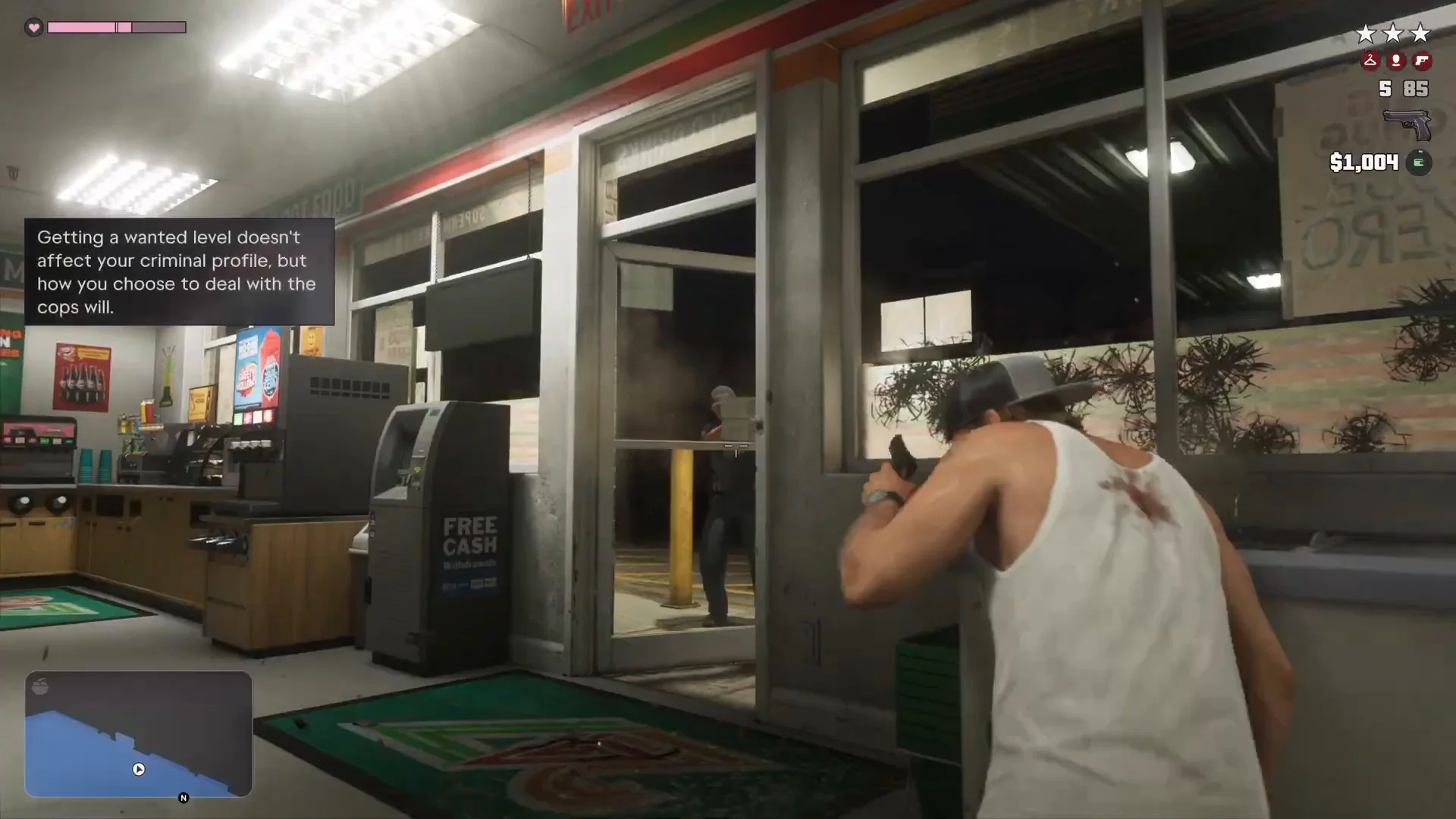
Skip to the guideThe police in GTA 6 work on two separate tracks. Your wanted level is the stars in the top-right corner, and you clear it by leaving the red search area or hiding until the stars go grey. Your criminal profile is a separate record of how you play, and the game says outright that a wanted level doesn’t change it. This page answers the questions players type most: how to escape, how to surrender, how to see and lower the criminal profile, how the police scanner works and how to cover your face.
Quick version: escape by leaving or hiding from the red search area, then change your car and look so the cops can’t recognize you. A Surrender prompt exists, but we haven’t confirmed what it does. The criminal profile has no confirmed way to be lowered. The cop scanner is a phone plugin from the Unwanted Attention mission, and you can wear a mask or bandana from your loadout before a crime.
How to escape the police
The full walkthrough, with screenshots from a two-star chase and a four-star plane-and-parachute escape, is in our how to lose the cops guide. The short version:
- Break away. Change direction, use back streets or go off-road. The game’s own hint is “Lose the cops by hiding or escaping their search area.”
- Leave the red circle or hide inside it. Hiding behind cover in a car park until the police radio goes quiet worked in the footage.
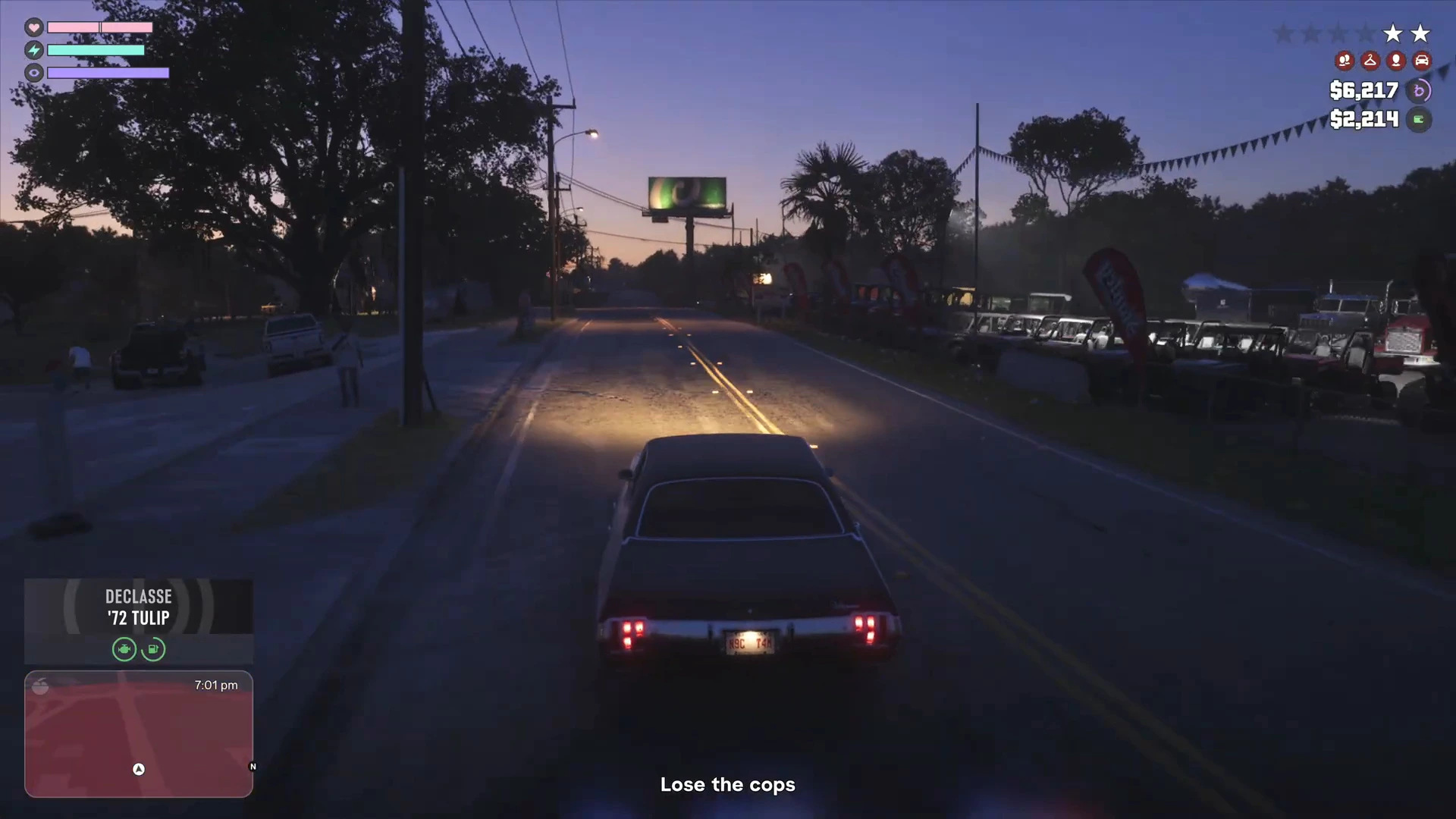
- Wait for the stars to go grey. Grey stars mean the police have lost sight of you.
- Clear the heat. After a chase the game says the cops “have your vehicle description.” Respray the car at a Pay ‘n’ Spray, switch hat and glasses and buy a new outfit.
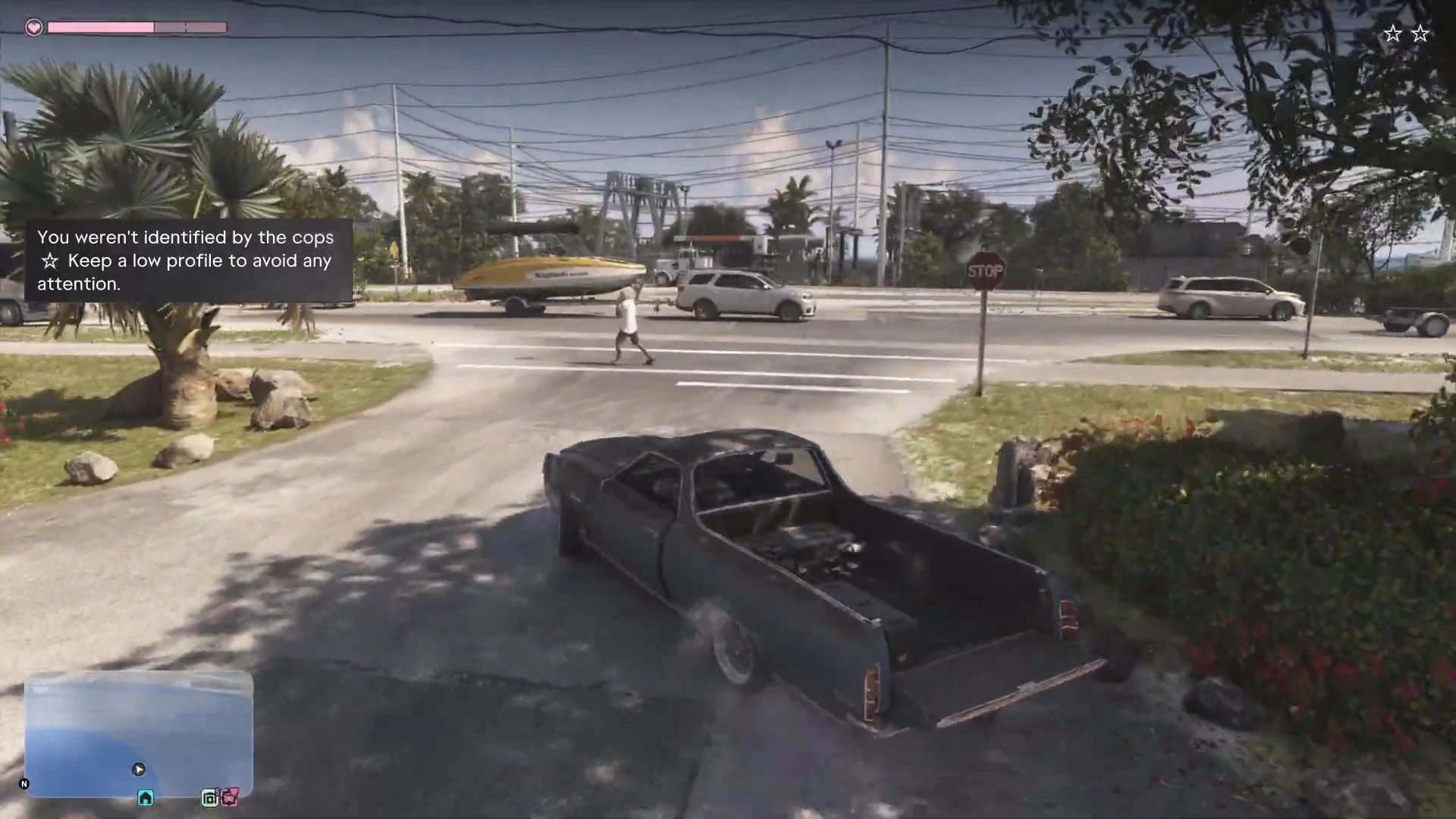
When a chase ends without the police identifying you, the game confirms it: “You weren’t identified by the cops. Keep a low profile to avoid any attention.”
How to surrender
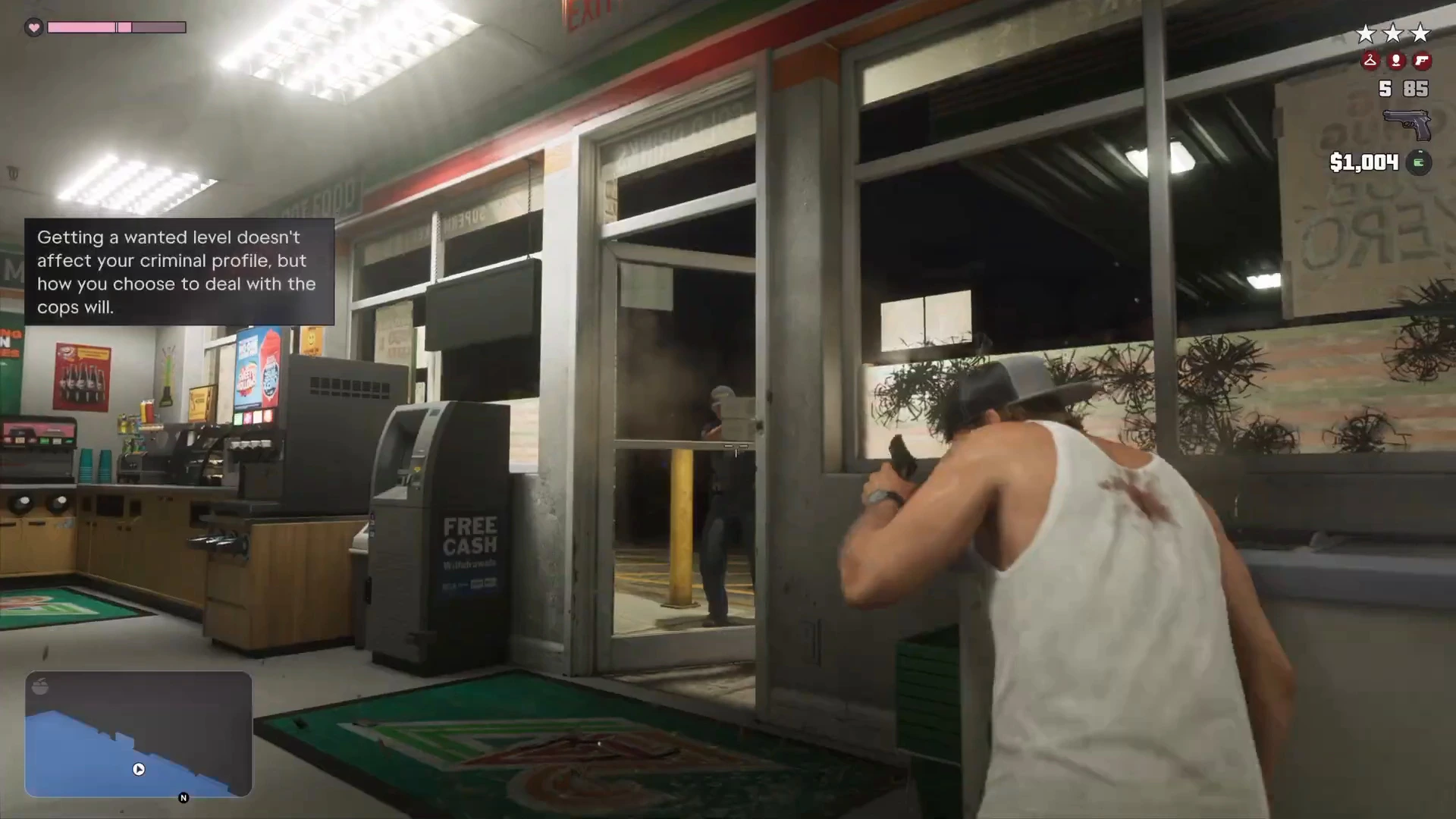
The footage shows a Surrender prompt. When Jason walked into a 24/7 Supermarket with the police already looking for him, the prompt appeared on screen, and officers reached the door within seconds of the robbery that followed. See how to rob stores for that sequence.
What we can’t confirm yet is what surrendering costs you. We haven’t played it through, so we don’t know about fines, losing weapons, a jail scene or a time skip, and we won’t guess. If you care about your save, make a manual save before a crime so you can reload if surrendering goes badly.
The criminal profile: what it is
The criminal profile tracks the way you handle fights and the police. The game teaches it through tips and an on-screen feed that tags takedowns as you go. The labels we have seen in the game are:
- Professional: clean criminal actions with limited aggression (Unwanted Attention).
- Hardened: lethal force pushes you toward it (Down to Earth), and so does disabling a pursuing police car without casualties (Discharge Time).
- Violent: “indiscriminate violence”, such as attacking a harmless bystander (Find Donnie’s Package).
Our combat tips page lists the missions where each tip appears. Reports before launch described a longer ladder with more severe levels at the top, and one outlet said the last level is permanent. We haven’t seen those levels in the footage we’ve checked, so treat that as unconfirmed.
How to see your criminal profile
We haven’t found a menu screen that shows your profile as a single stat. What the game does show:
- A feed on the right side of the screen that tags takedowns, such as Lethal or Violent, while you fight.
- Tips when your actions push you toward a profile.
- The Fitness app shows Strength, Cardio and Focus, but not the criminal profile. A gym tip says thoughtful actions raise your focus bar “depending on your criminal profile,” which is the one confirmed effect so far. See the gym guide.
If you can see the profile somewhere we haven’t, the phone and apps guide is where we’d add it.
How to lower your criminal profile
No confirmed method exists. We haven’t seen a shop, item or phone app that resets it, and the game’s wording points the other way: it is about how you choose to deal with the cops. So the practical advice is about not pushing it up in the first place:
- Use fists and non-lethal takedowns on people who aren’t a threat.
- Slip away from the police instead of shooting your way out.
- Don’t hurt bystanders.
- Remember that picking up stars does not count against you. Only your reaction does.
How to use the police scanner
Cal installs a cop scanner on Jason’s phone at the impound in Unwanted Attention. A hint confirms you can now listen in on police radio and get notified about dispatch areas. There is no button to learn: it works in the background. You can find it in the phone’s Settings app under Third-Party Plugins as cop_scanner_v3.1.9, described as an “encrypted radio scanner that picks up frequencies from police comms.”
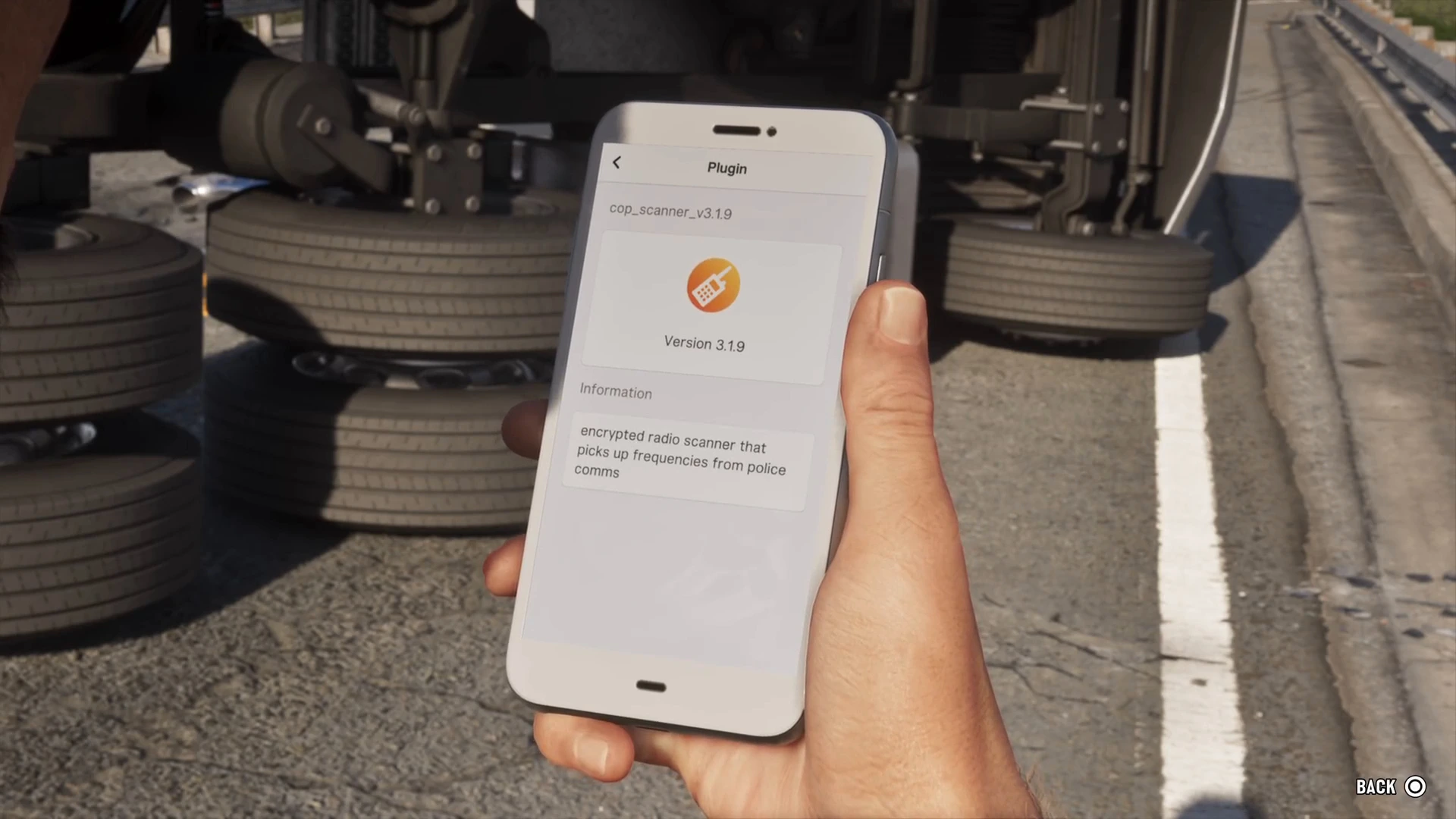
The scanner is a good early warning. If a dispatch area is called out near you, move before the stars appear. More on the plugin is in the phone and apps guide.
How to cover your face
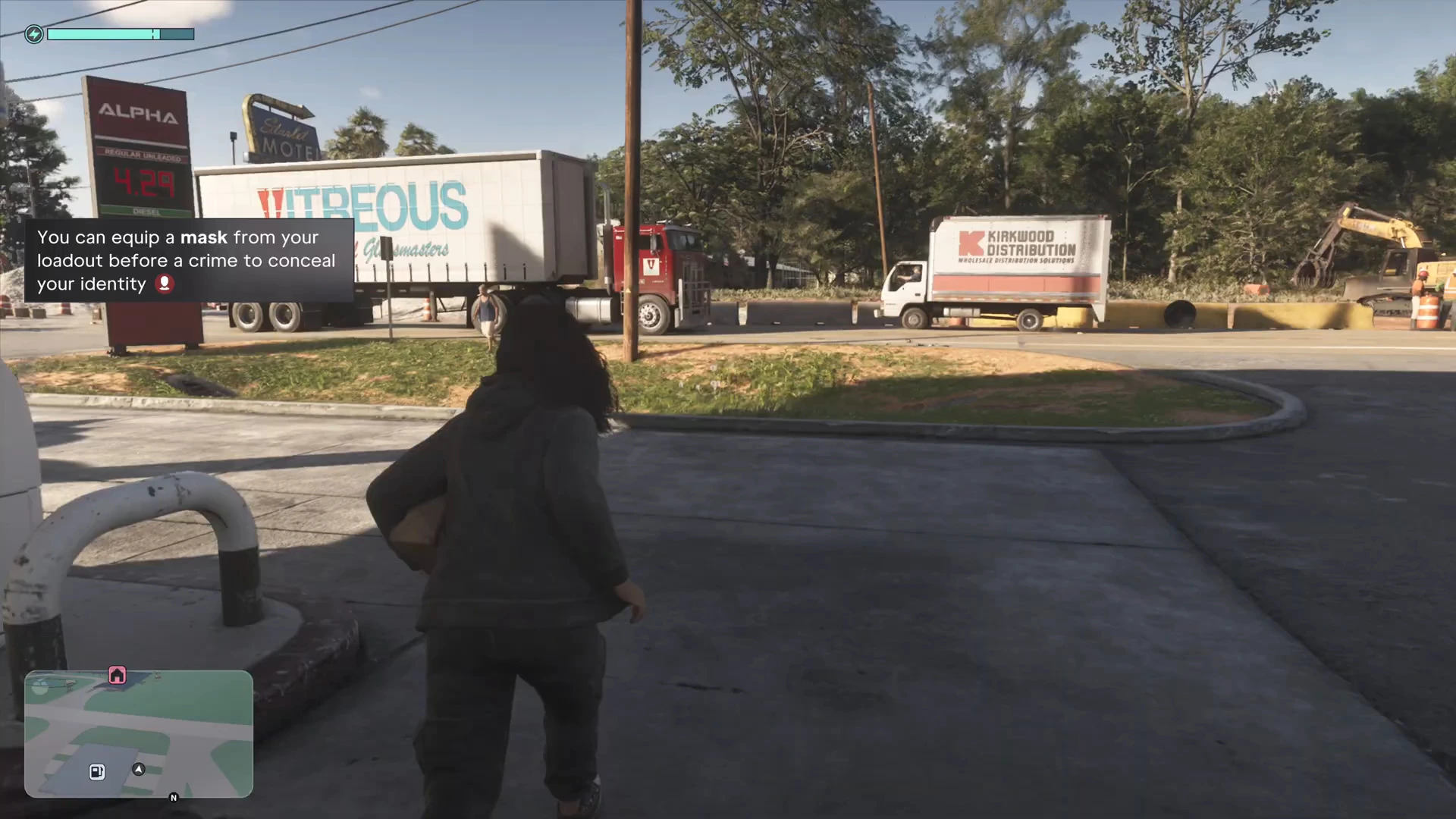
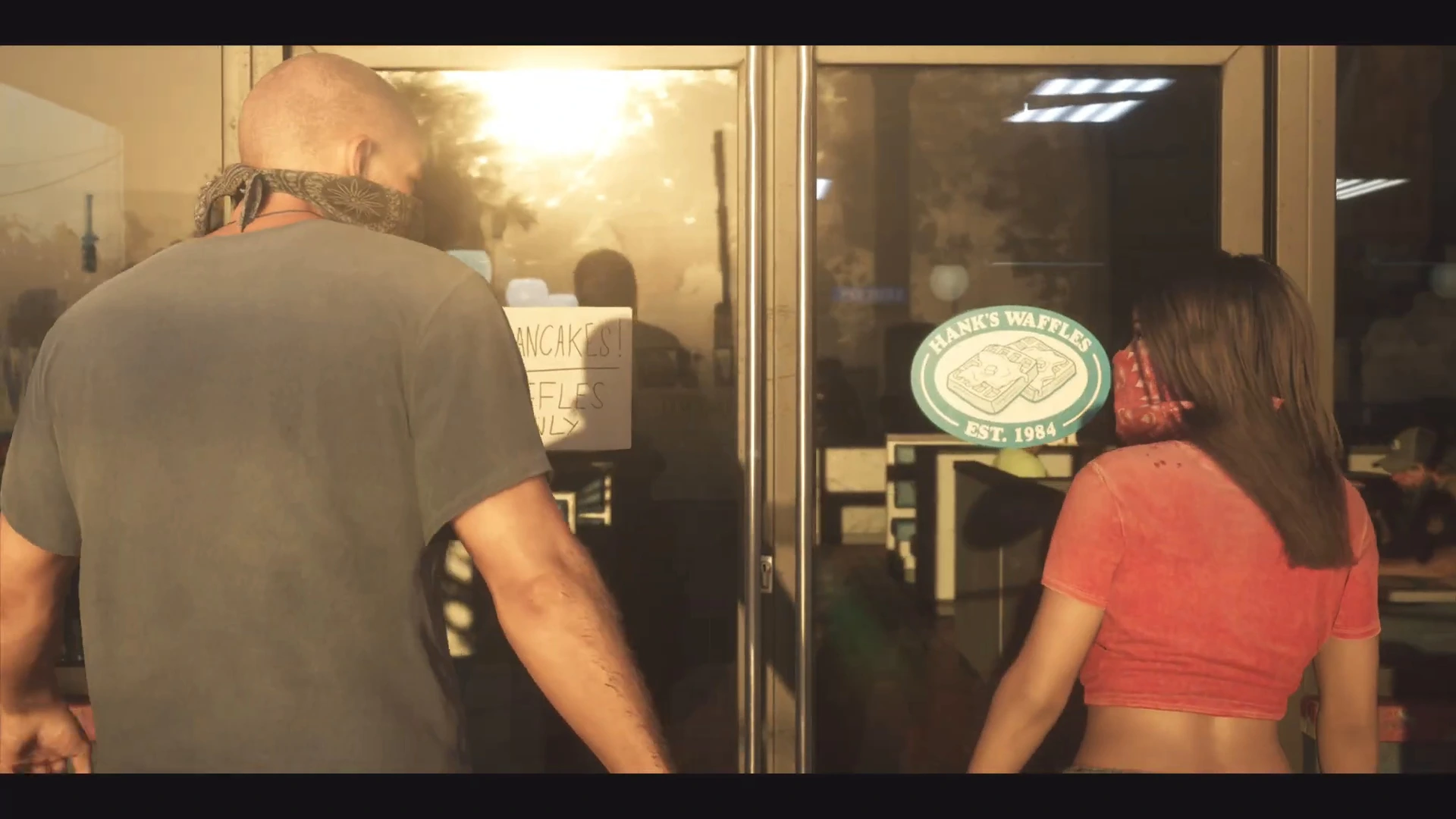
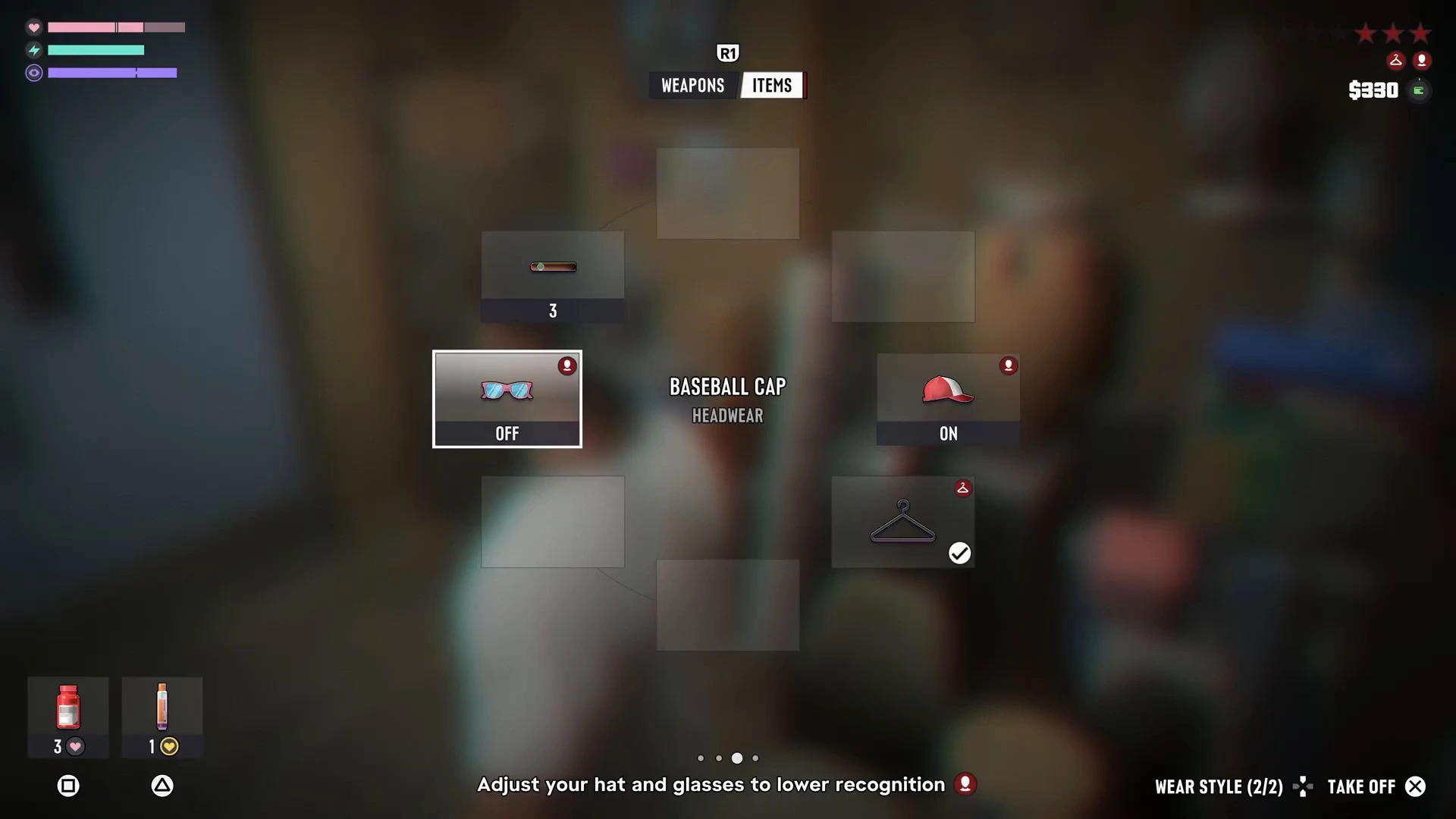
A tip in Take Care of Jason says: “You can equip a mask from your loadout before a crime to conceal your identity.” Open the loadout (hold L1 on PS5), press R1 to switch to the Items tab and equip it. In Breakfast Run Jason hands Lucia a bandana before the Hank’s Waffles robbery, and both wear one.
The item wheel also lets you toggle glasses and a cap, with the hint “Adjust your hat and glasses to lower recognition.” Where to get a mask is covered in how to get a mask.
Common questions
Do stars hurt my criminal profile? No. The game says a wanted level doesn’t affect it.
Can Jason and Lucia share a profile? Not confirmed. One pre-launch report said each character has their own, but we haven’t tested it.
What if the police still recognize me? Change the car, the outfit and the accessories. All three heat icons clear separately.
More GTA 6 guides
- GTA 6 glossary
- How to lose the cops
- Combat tips and criminal profile
- How to steal cars
- How to change clothes
- Tips nobody tells you
- How to get a mask
- Every mission walkthrough