GTA 6 Phone Guide: How to Use the Phone and Every App We've Seen
How to use the phone in GTA 6: how to open it, what every app does, from WhatUp, Camera and Snapmatic to BuckMe, WAiNK and Scooter Bros, and when each unlocks.
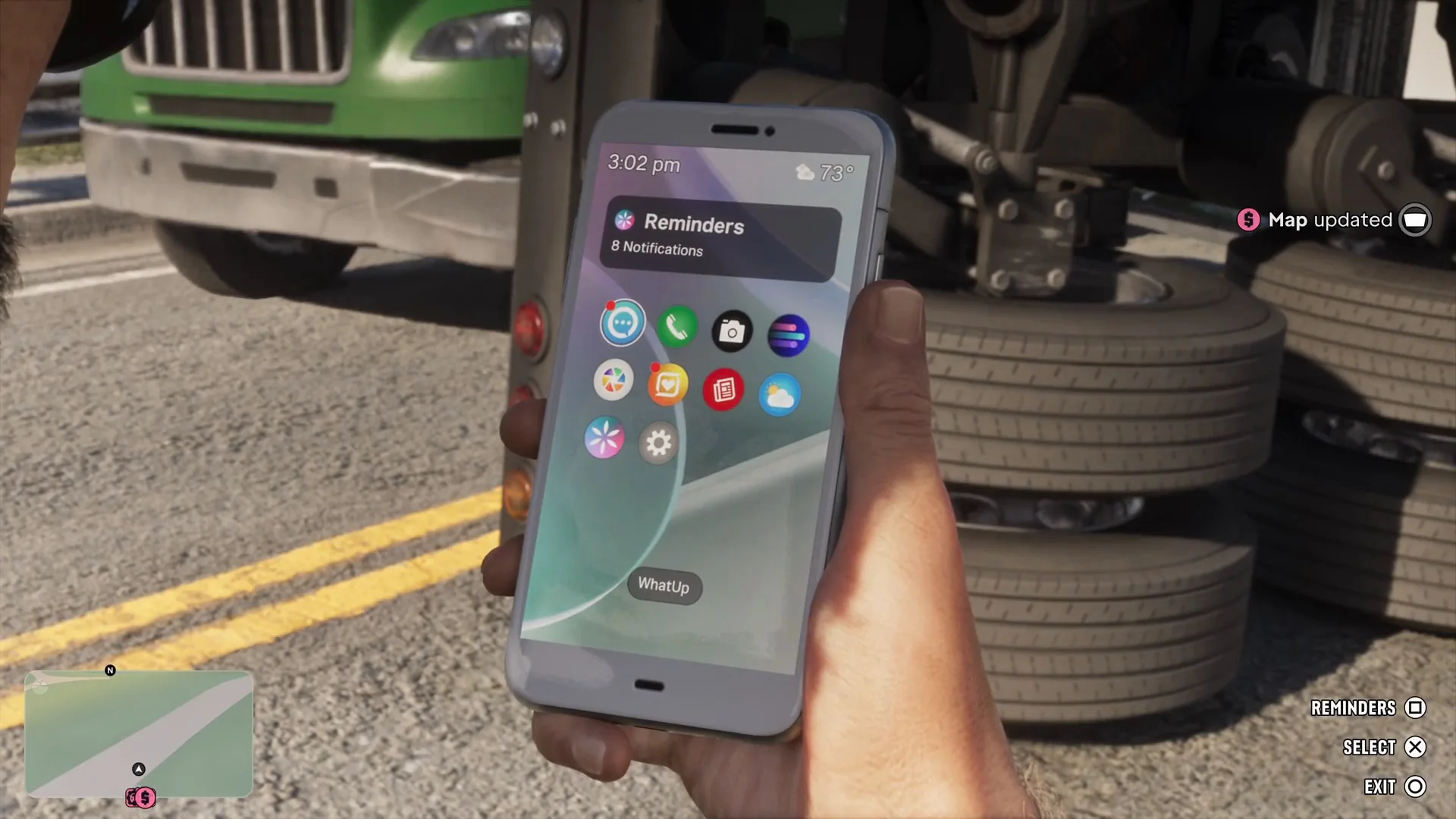
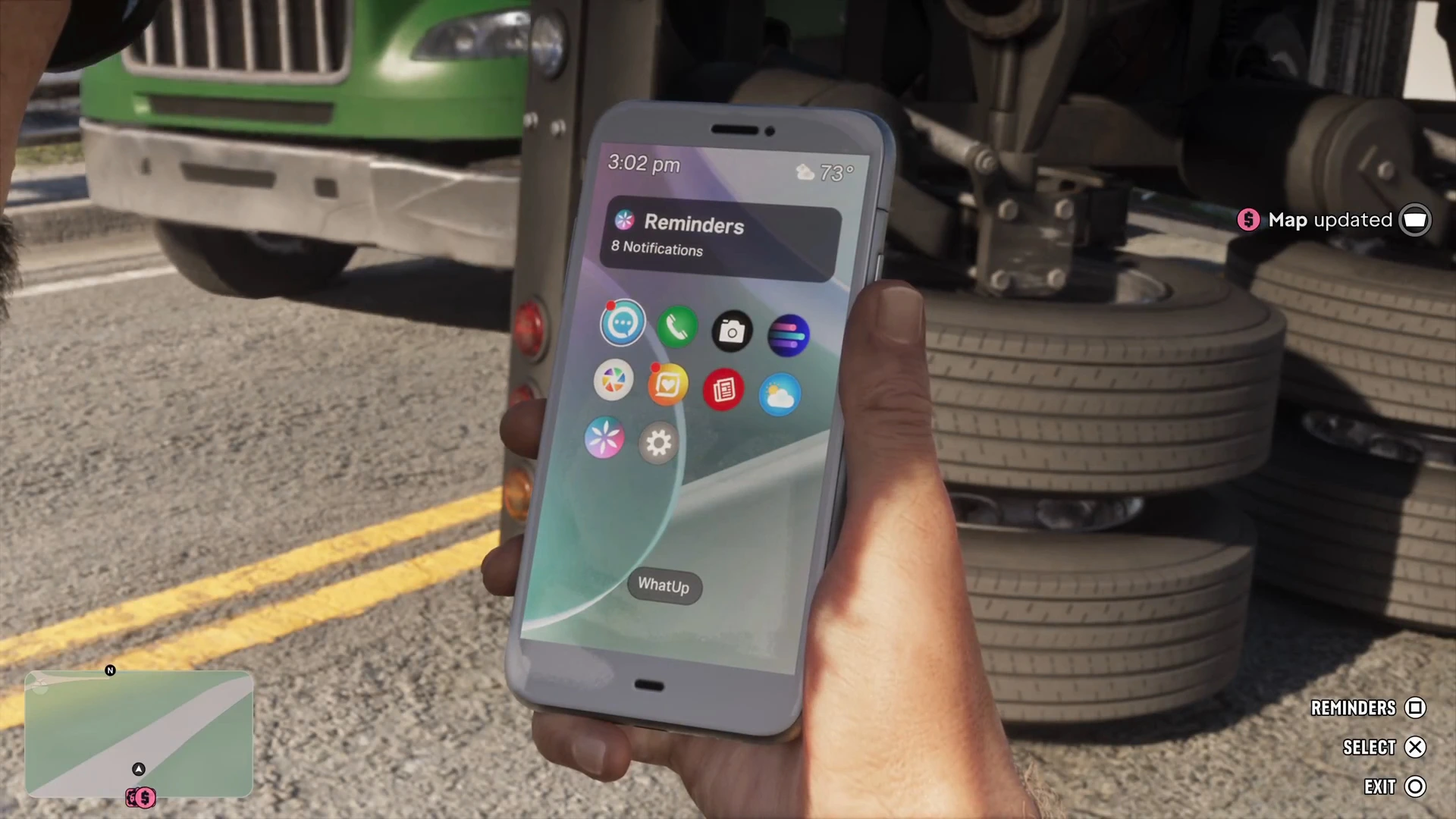
Skip to the guideTo use the phone in GTA 6, press up on the d-pad. The home screen opens with the time, the weather, a Reminders widget and a grid of apps. Highlight an app and press the select button to open it. The back button takes you out a level, and exit puts the phone away.
You start with messages, contacts, a camera, social media and a few system apps. The story then adds the useful ones: BuckMe for banking, WAiNK for scanning cars, Scooter Bros for vehicle delivery and a cop scanner. This guide covers each app we’ve seen in footage of the first chapters and what it’s for.
Quick version: d-pad up → pick an app → Select. Reminders has its own button on the home screen. Texts with an address can set a GPS route straight from the message.
The home screen
The phone is an iFruit, as the Settings app shows. The home screen has:
- The clock and weather at the top.
- Reminders, a widget with a notification count. It has its own button prompt, so you can jump straight to it.
- The app grid, with the name of the highlighted app shown at the bottom of the screen.
WhatUp (messages)
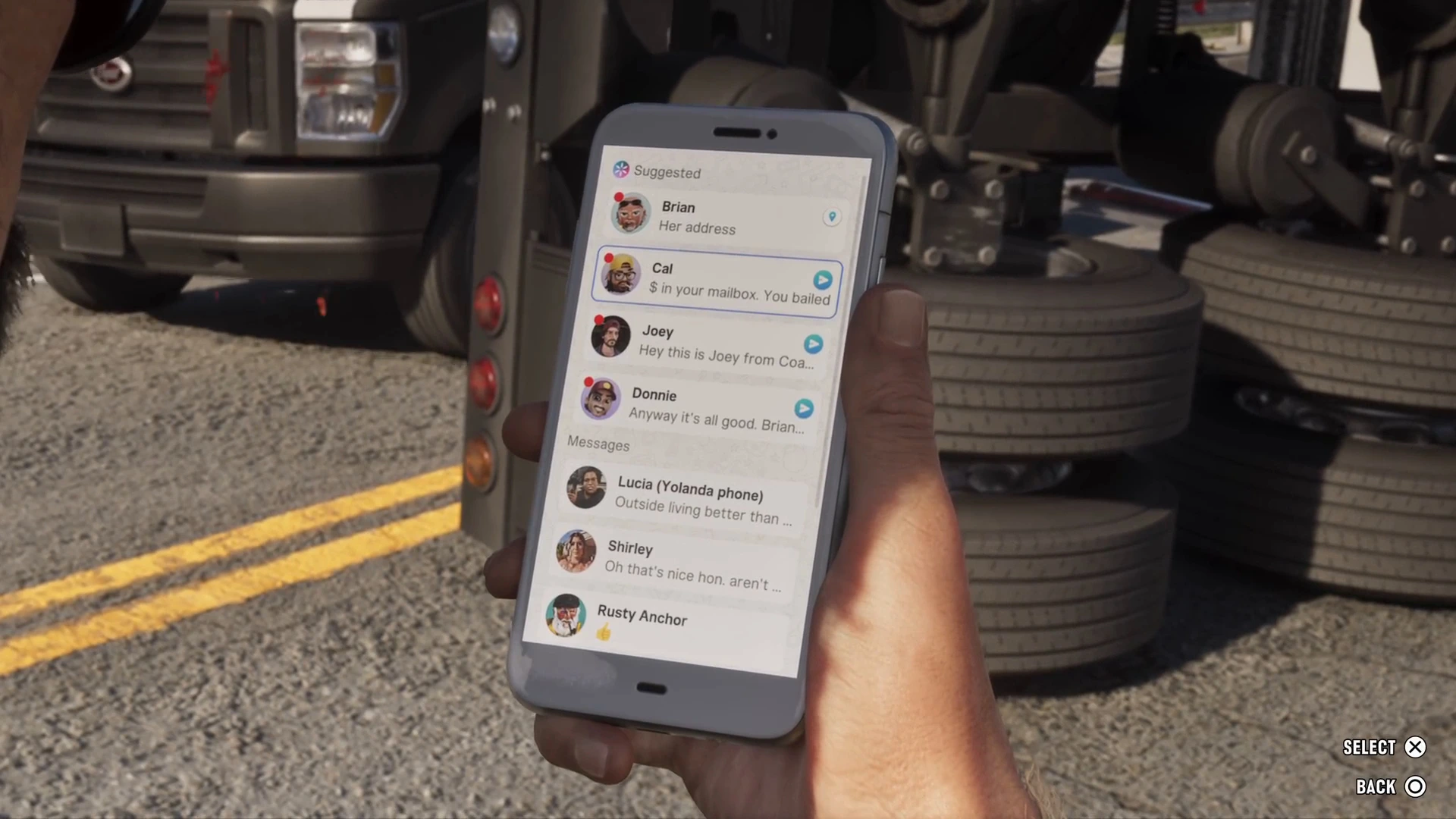
WhatUp is the messaging app, and it’s where most jobs and tips arrive. It’s split into Suggested conversations at the top and Messages below. In this save Brian, Cal, Joey and Donnie were suggested, with Lucia, Shirley and the Rusty Anchor bar under Messages.
Open a conversation to read it and reply with Send. When a text contains an address, such as Brian’s message with a street name, you get a Set Destination prompt that routes your GPS straight there.
Phone (contacts)
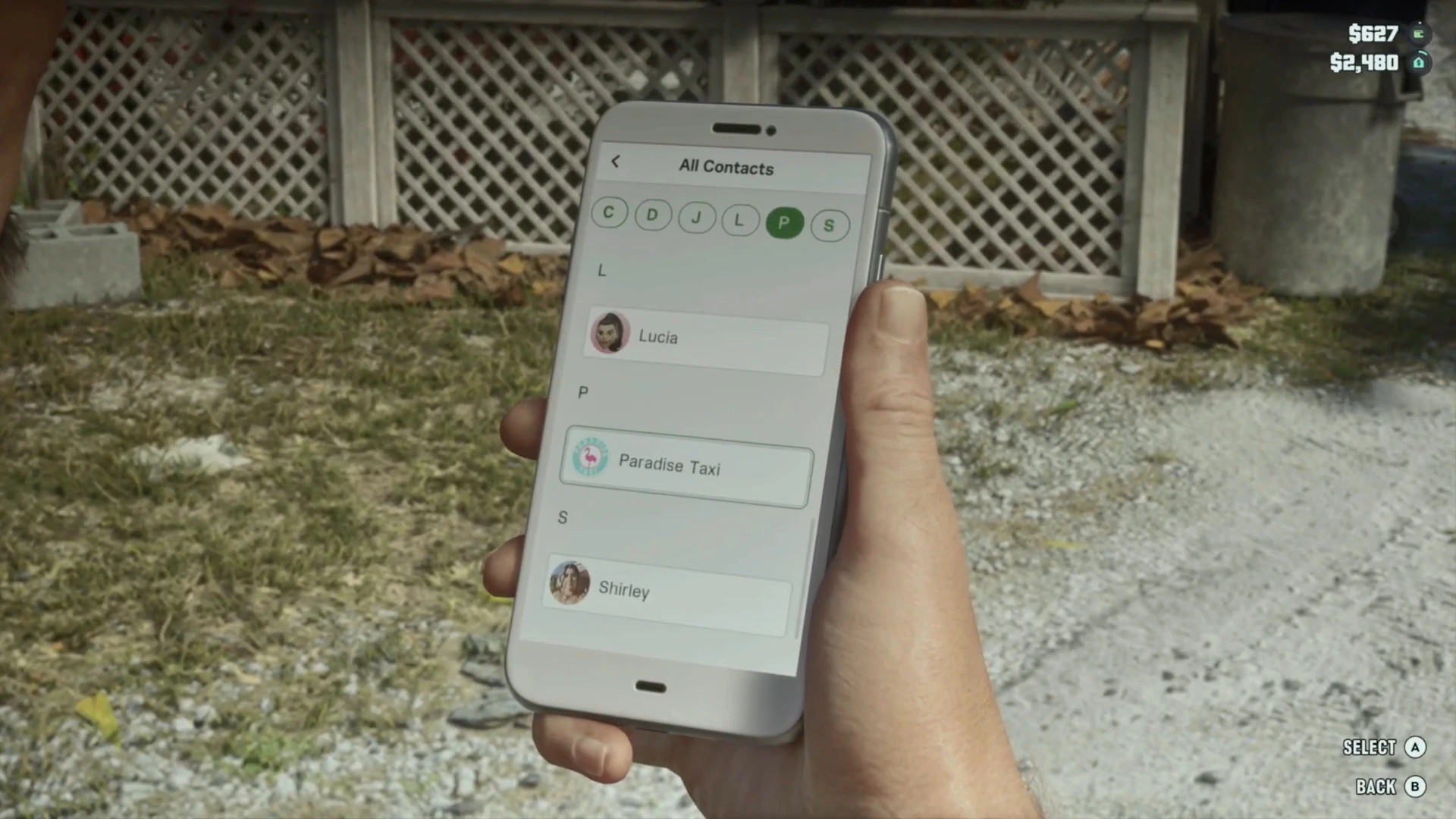
The green phone icon opens Contacts. Choose All Contacts for the full list, sorted with letter tabs along the top. Contacts are services as well as people:
- Paradise Taxi picks you up and drives you to any map destination, or skips the trip for $100. See fast travel and taxis.
- Joey at Coastal Auto Care repairs or delivers your car after Just a Scratch. See how to get your car back.
- Chuck’s Gun Shop is in the list from the first chapter.
Camera and Gallery
The Camera turns the phone into a viewfinder. The controls on screen are Take Photo, Light, Show Grid, Selfie, Zoom, Filter and Gallery. There are 17 filters, and the gallery counter read 0/32 on an empty phone, so it holds 32 photos. Selfie mode flips the camera to face your character.
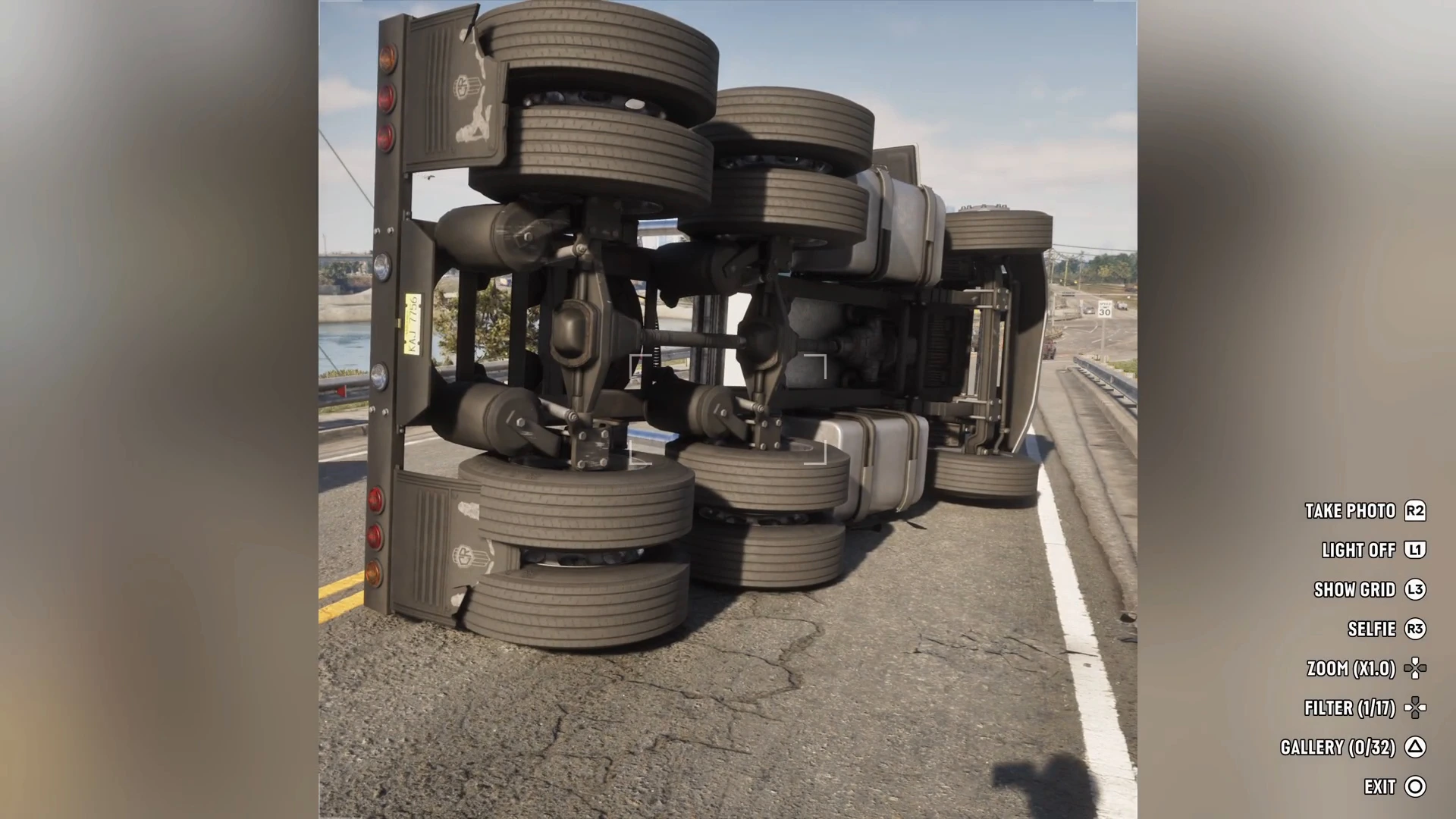
Gallery stores your photos, sorted into albums such as My Photos and Personal. Phones turn up in the world too. On the SOS island near the jet ski dog easter egg, Jason finds a phone on the sand and can play a selfie video on it.
Snapmatic
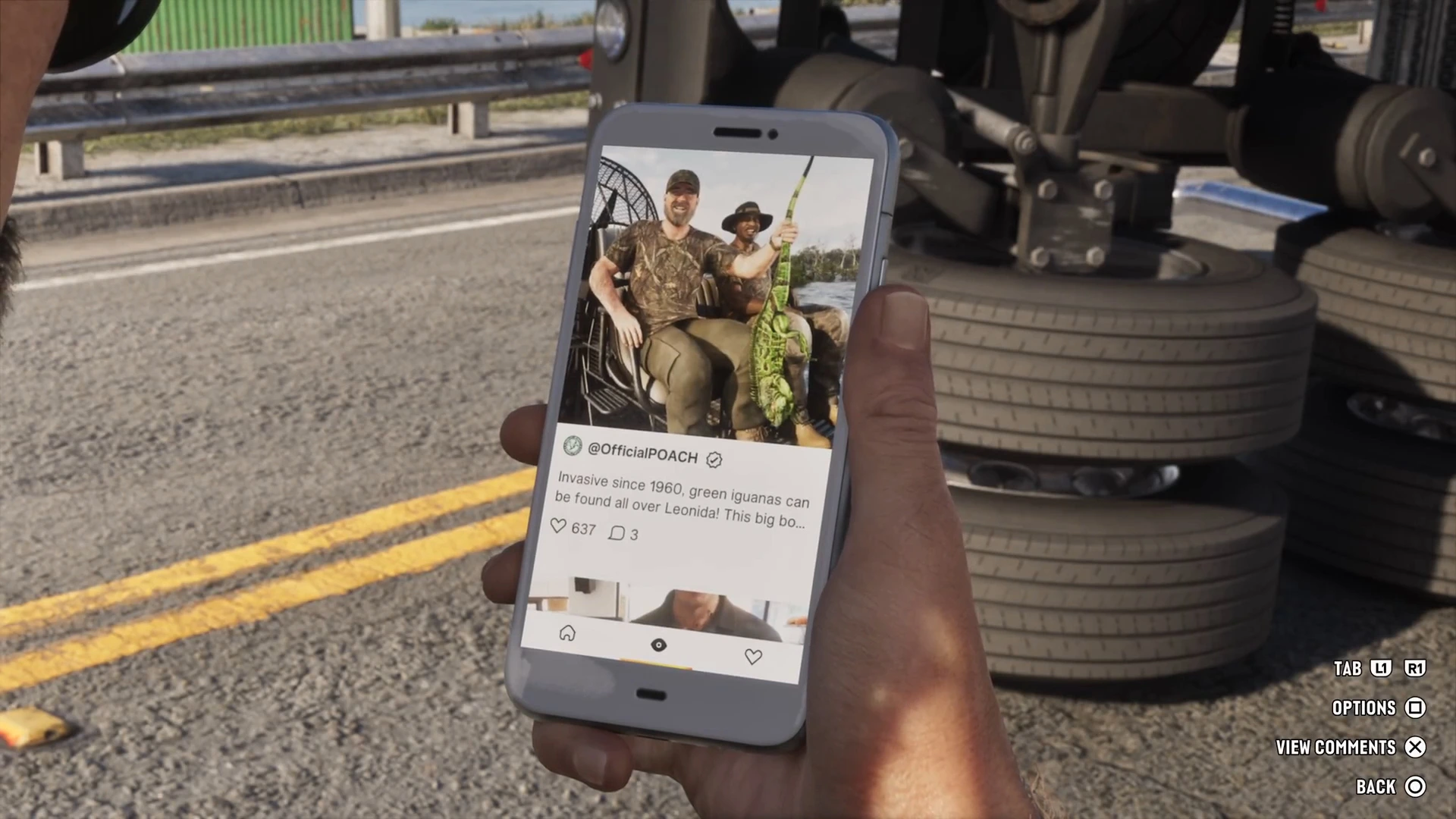
Snapmatic is GTA 6’s social media app. It’s a scrolling feed of posts from Leonida’s residents and businesses, with likes and comment counts under each one. You can switch tabs, open options and View Comments on any post. Expect plenty of local jokes, such as a post about invasive green iguanas.
News and Weather
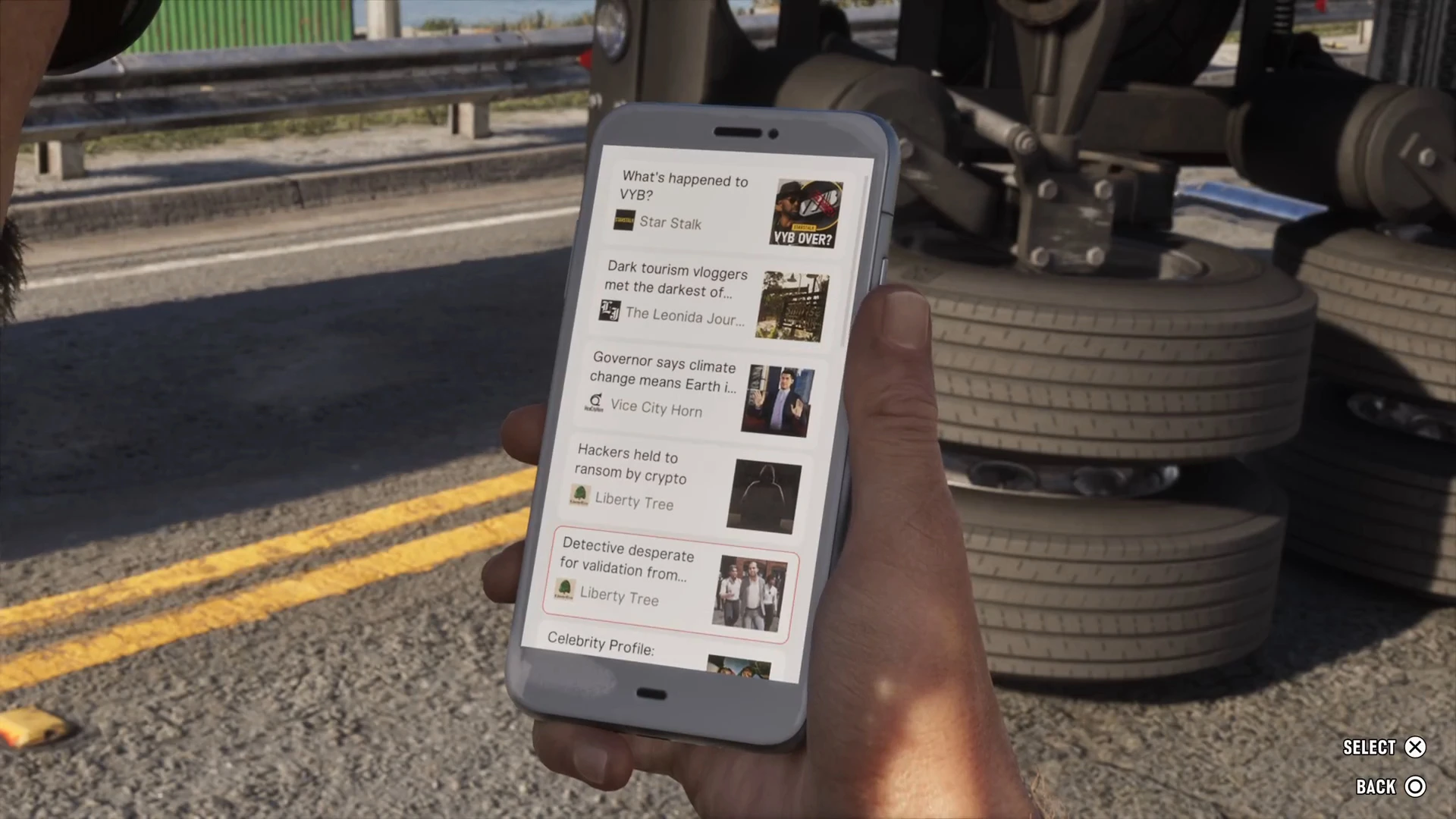
News collects headlines from Leonida’s outlets, including Star Stalk, The Leonida Journal, Vice City Horn and Liberty Tree. It’s flavour, but it often reacts to the world around you.
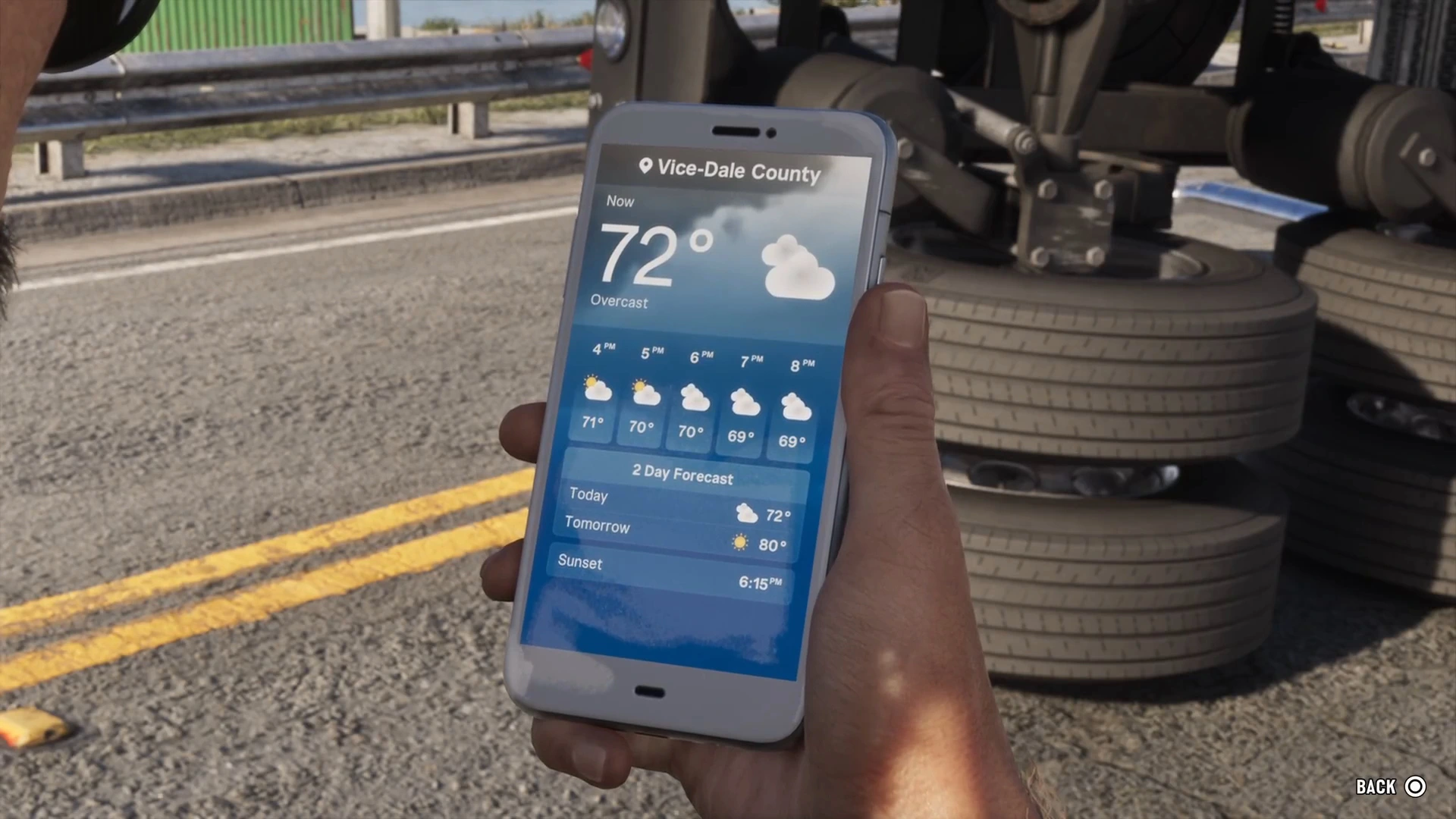
Weather shows the current temperature for your county, an hourly forecast, a two-day forecast and sunset time. It’s useful for activities that depend on conditions, such as fishing. See fishing and animals.
Fitness
The Fitness app tracks your character’s three stats: Strength Workout, Cardio Workout and Focus, each with a level out of 4. Strength and cardio each have a Workout window bar, the time you have to fit in your next session. The Help menu warns that missing it enough times risks dropping a level. Scroll down for Body & Nutrition, which describes your build (for example “Ripped: Muscle High, Body Fat Low”) and your Calorie Balance.
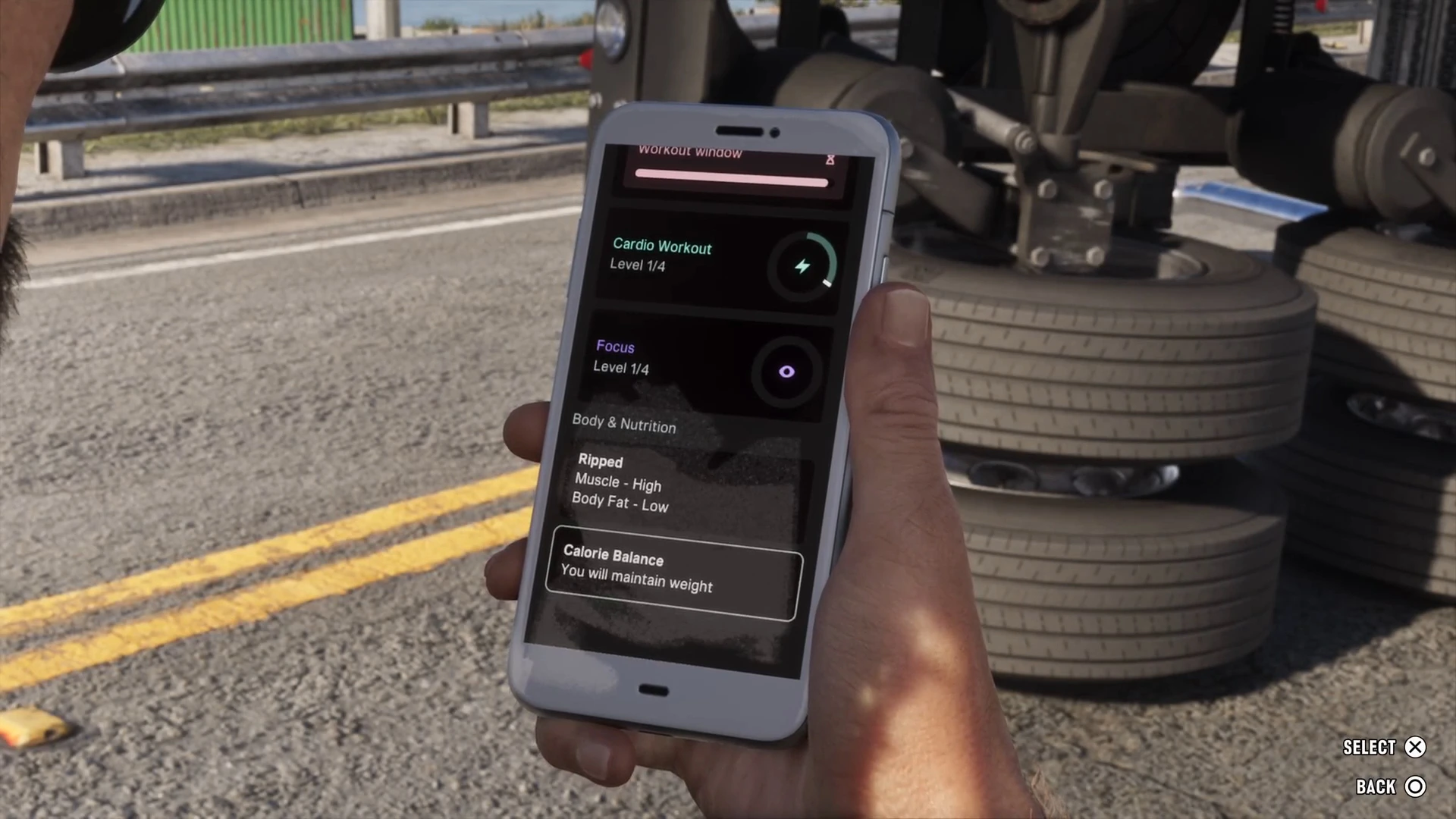
The gym and workout guide explains how to raise each stat.
Settings and the cop scanner
Settings has three options: Wallpaper, Ringtone and Third-Party Plugins. Ringtones include Silent, Wind Chimes, Dreamy, Beeps, Retro, Beam Me Up, Bugging, Echo, Samba Nights and Digital Raindrops.
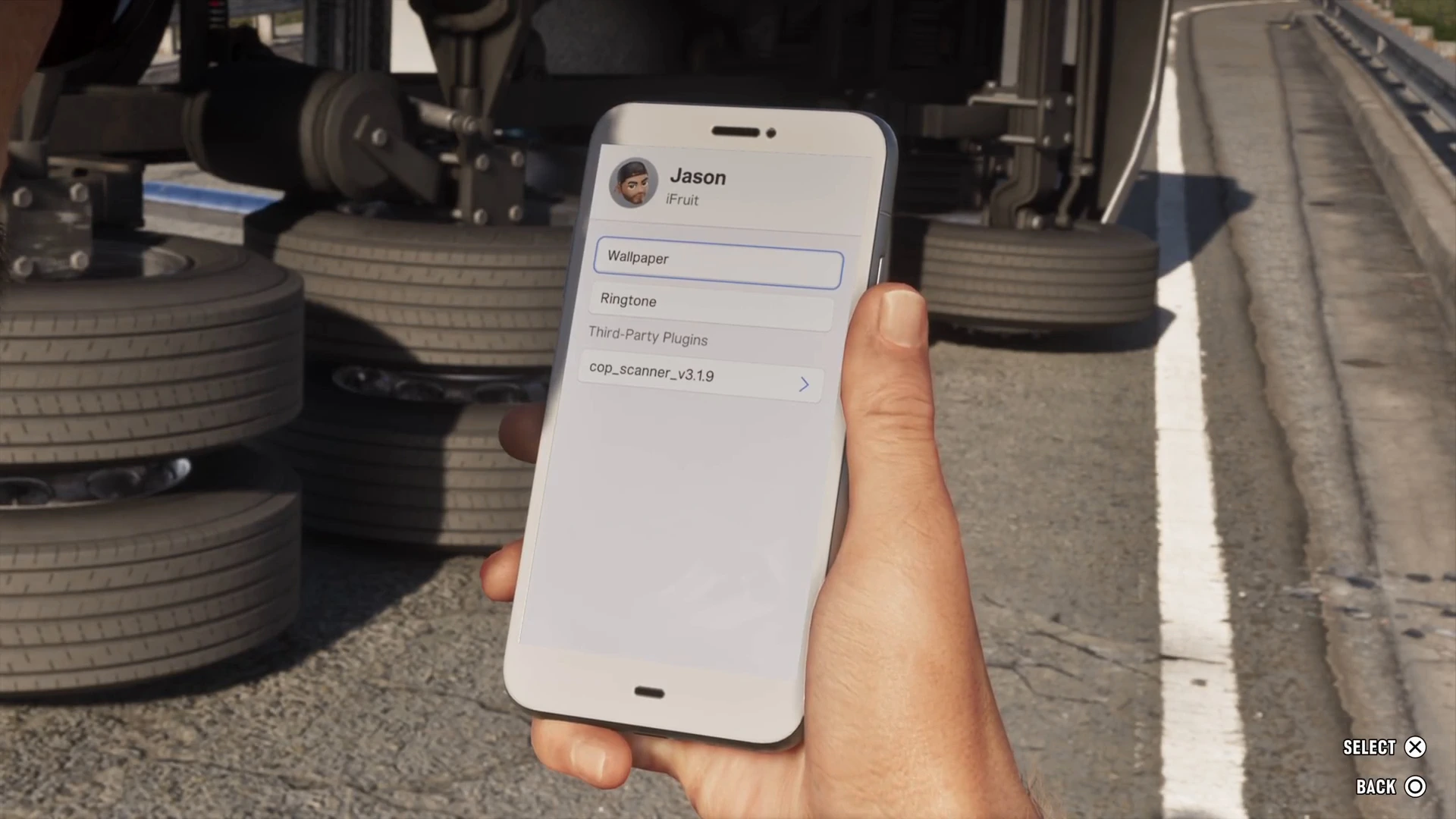
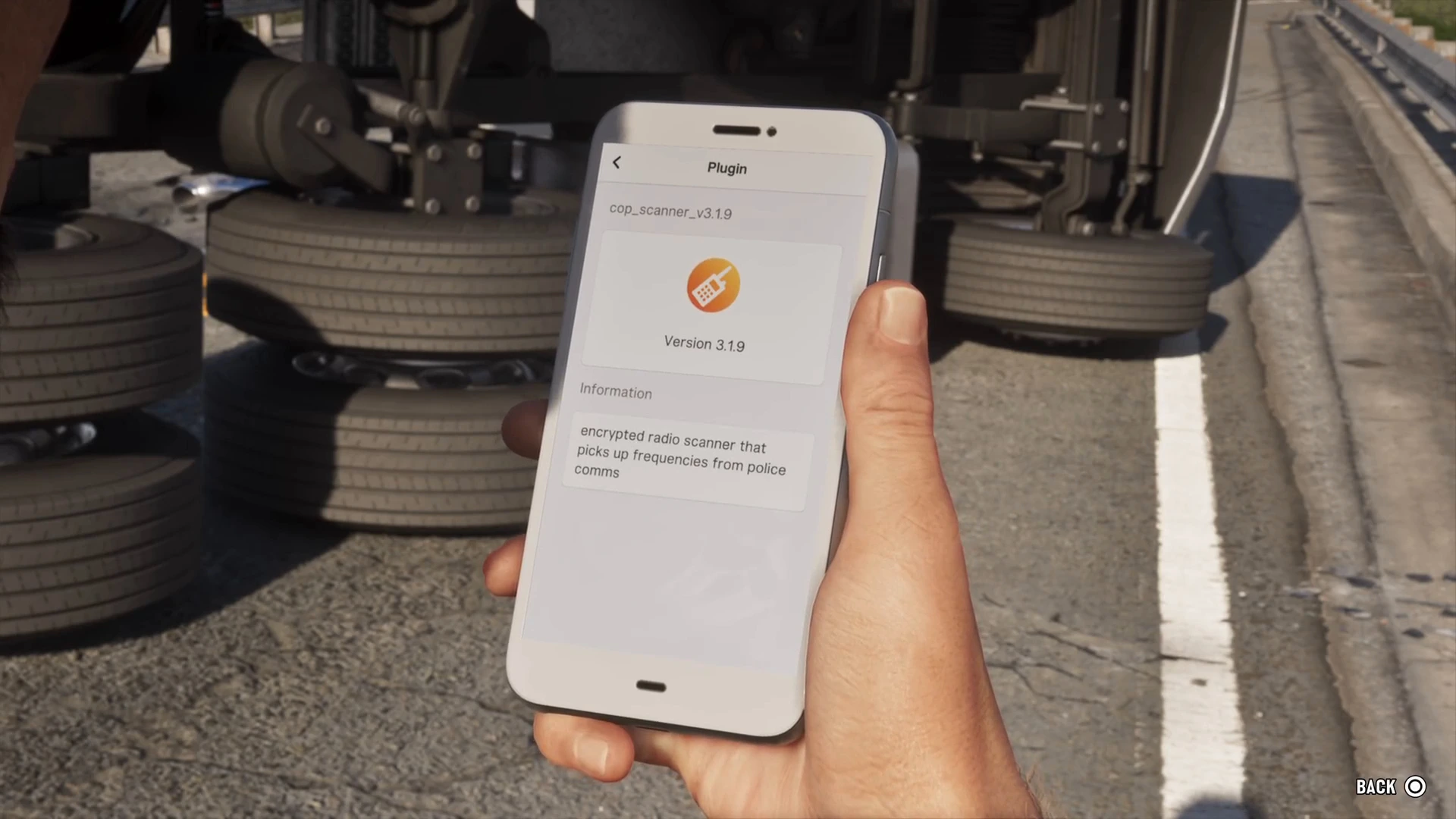
The cop scanner shows up under Third-Party Plugins as cop_scanner_v3.1.9. Its description reads “encrypted radio scanner that picks up frequencies from police comms.” Cal installs it on Jason’s phone in Unwanted Attention. A hint then confirms you can listen in on police radio and get notified about dispatch areas. See how to lose the cops.
Apps the story adds
BuckMe (banking)
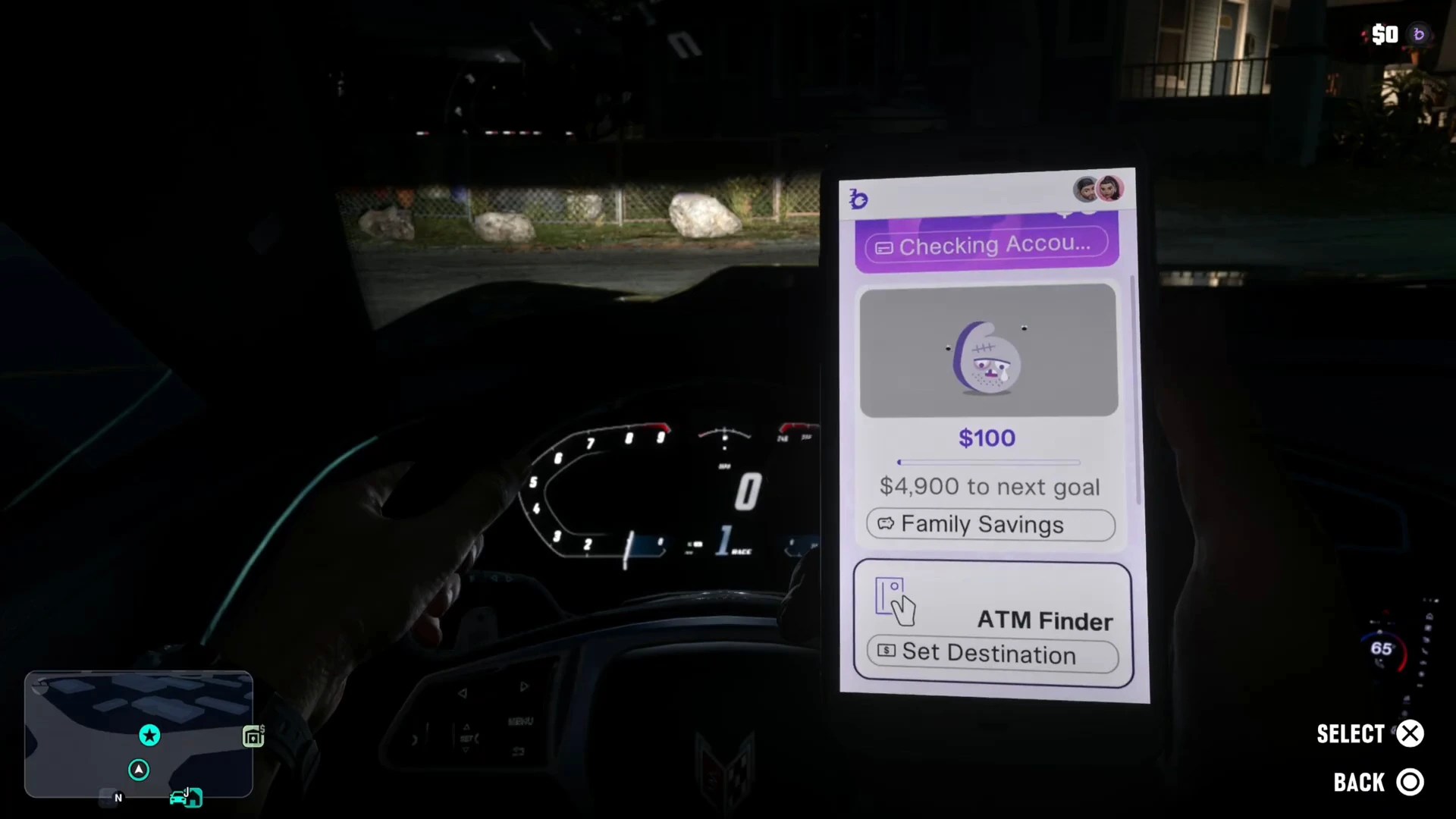
Jason gets BuckMe in Buck Me in Chapter 1, with a $100 welcome bonus. It shows your Checking Account and Family Savings, and its ATM Finder sets a route to the nearest ATM. Some purchases, such as big tattoos and certain guns, need a bank account. See how to deposit cash at an ATM and Save for the Future.
WAiNK (scan cars)
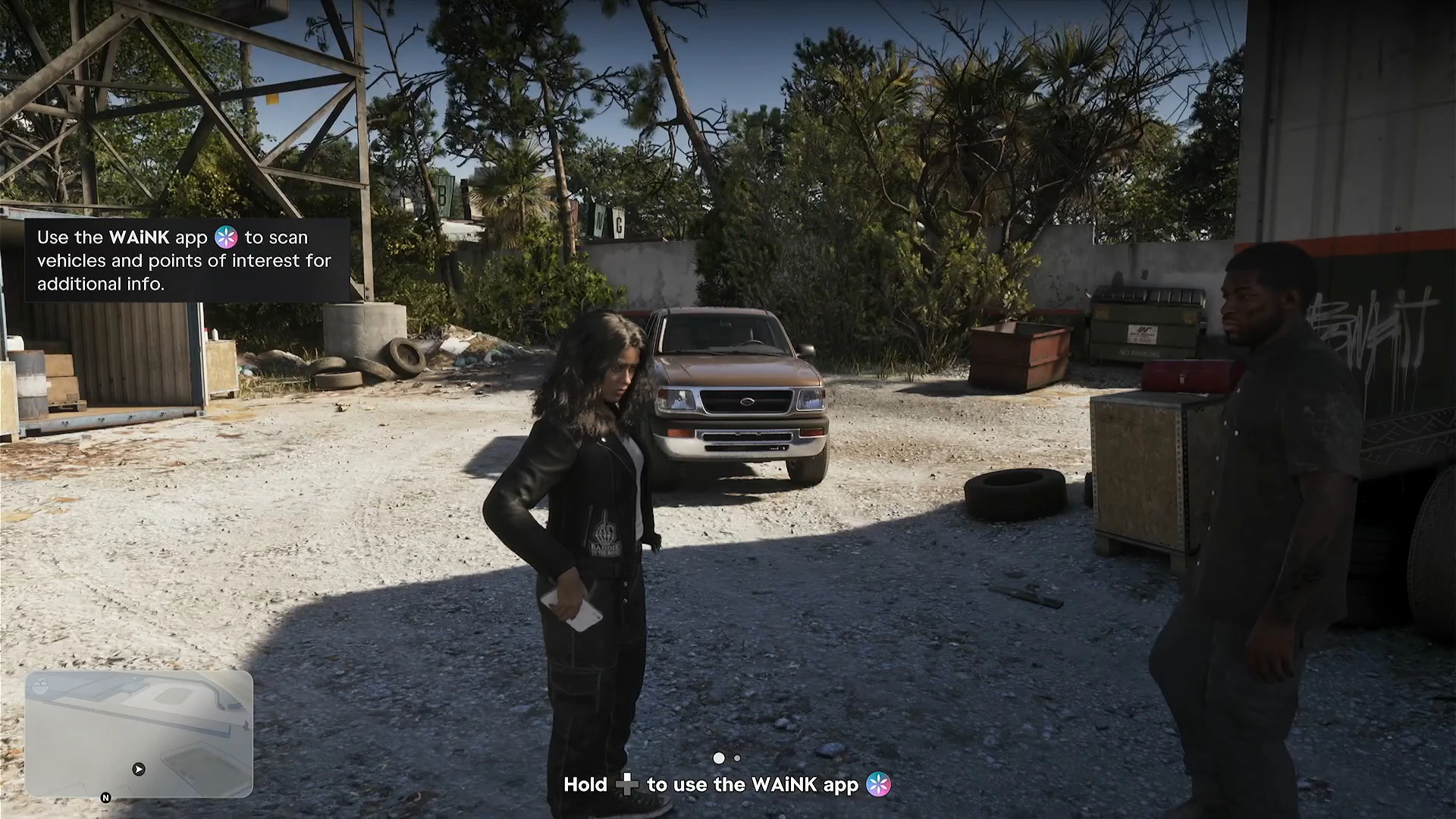
WAiNK works without opening the phone. Hold the d-pad button shown on screen and aim at a car to see its card: how to get in, its alarm, any tracker and what it would cost to register. The hint says it also scans “points of interest for additional info.” The car theft guide explains every line on the card.
Scooter Bros (vehicle delivery)
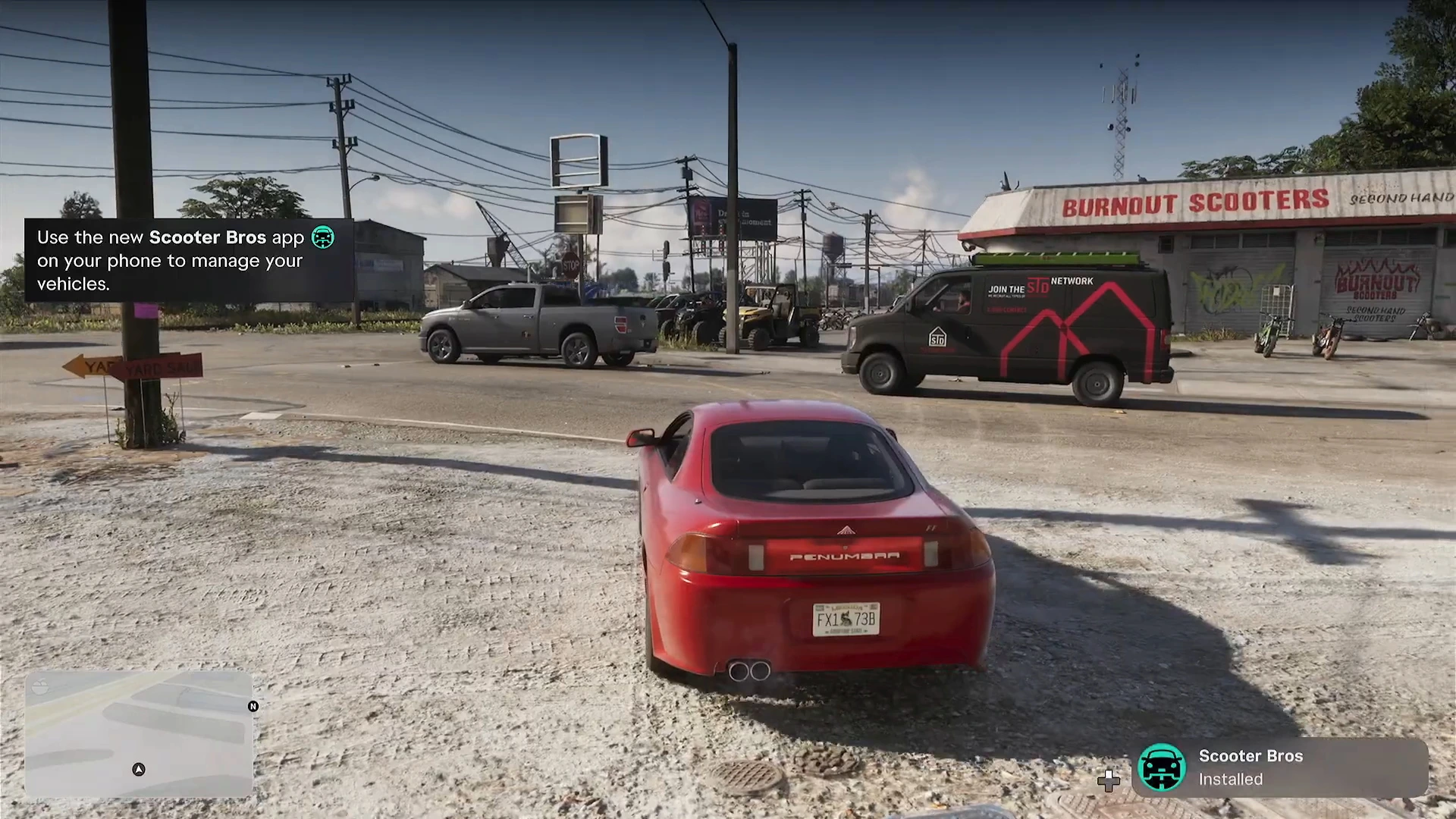
Moses sends you Scooter Bros in Chapter 2 after he registers your first car. The hint says to use it to manage your vehicles, and it can have a registered car delivered to you. See how to register a car.
RydeMe
PowerPyx reports that the RydeMe ride-hailing app takes over from Paradise Taxi as your way to skip long drives from Chapter 2. We haven’t shown it in footage yet.
Other phone features
- Notes. Codes you find are saved to Notes automatically, such as the lab code in Lab Fees and the 7700 code for Brian’s lockup.
- Calls during missions. Characters ring you with new objectives, and a call card appears in the corner of the screen.
- Cheats. After the story ends, cheat codes are entered on the phone’s home screen by holding L1 and R1 (LB and RB) and pressing a d-pad sequence. See GTA 6 cheats.
More GTA 6 guides
- GTA 6 phone apps database
- GTA 6 beginner tips
- Fast travel and taxis
- How to steal cars
- How to deposit cash at an ATM
- How to switch characters
- Every GTA 6 mission walkthrough