GTA 6 Best Settings: Graphics, HDR, Display, Controller and Audio
The best GTA 6 settings for PS5, PS5 Pro and Xbox: Game mode, VRR, HDR calibration, subtitles and turning off the narrator, plus what is unconfirmed.
Skip to the guideGTA 6 doesn’t have the long list of graphics options you might expect from a PC game, and what we can confirm about its in-game menus is limited. What we can say with confidence is how the game runs on each console and which settings on your TV and console change how it looks. This page covers both, and it marks every in-game option we haven’t verified as unconfirmed so you don’t go hunting for a slider that may not exist.
Quick version: use Game mode on your TV · turn HDR on and calibrate it in the console’s system settings · turn VRR on if your TV supports it · keep subtitles on if you want to read dialogue over the radio · turn off the console’s narrator or screen reader if the menus are being read out · check the in-game controls and display menus for vignette, brightness and camera options, because we haven’t confirmed their names.
How GTA 6 runs on each console
| Console | Reported output | Frame rate | Notes |
|---|---|---|---|
| PS5 | 1440p internal | Mostly 30fps, high 20s in chases | Standard PS5 |
| PS5 Pro | 1440p internal to near 4K with Sony PSSR | Nearly locked 30fps | Ray-traced shadows, labelled PS5 Pro Enhanced |
| Xbox Series X | 1440p internal | Mostly 30fps, high 20s in chases | Same figures as PS5 |
| Xbox Series S | About 720p toward 1080p | Mid 20s driving, about 20 in crowds | Weakest version |
These figures come from Digital Foundry’s launch analysis as reported in the tech press, and we cover them in more detail in the PS5 vs PS5 Pro vs Xbox comparison and the Xbox Series S guide. The headline for settings is simple. Every console targets 30fps and there is no 60fps performance mode at launch, so you can’t trade resolution for frame rate. If a later patch changes that, we’ll update this page.
Best graphics settings
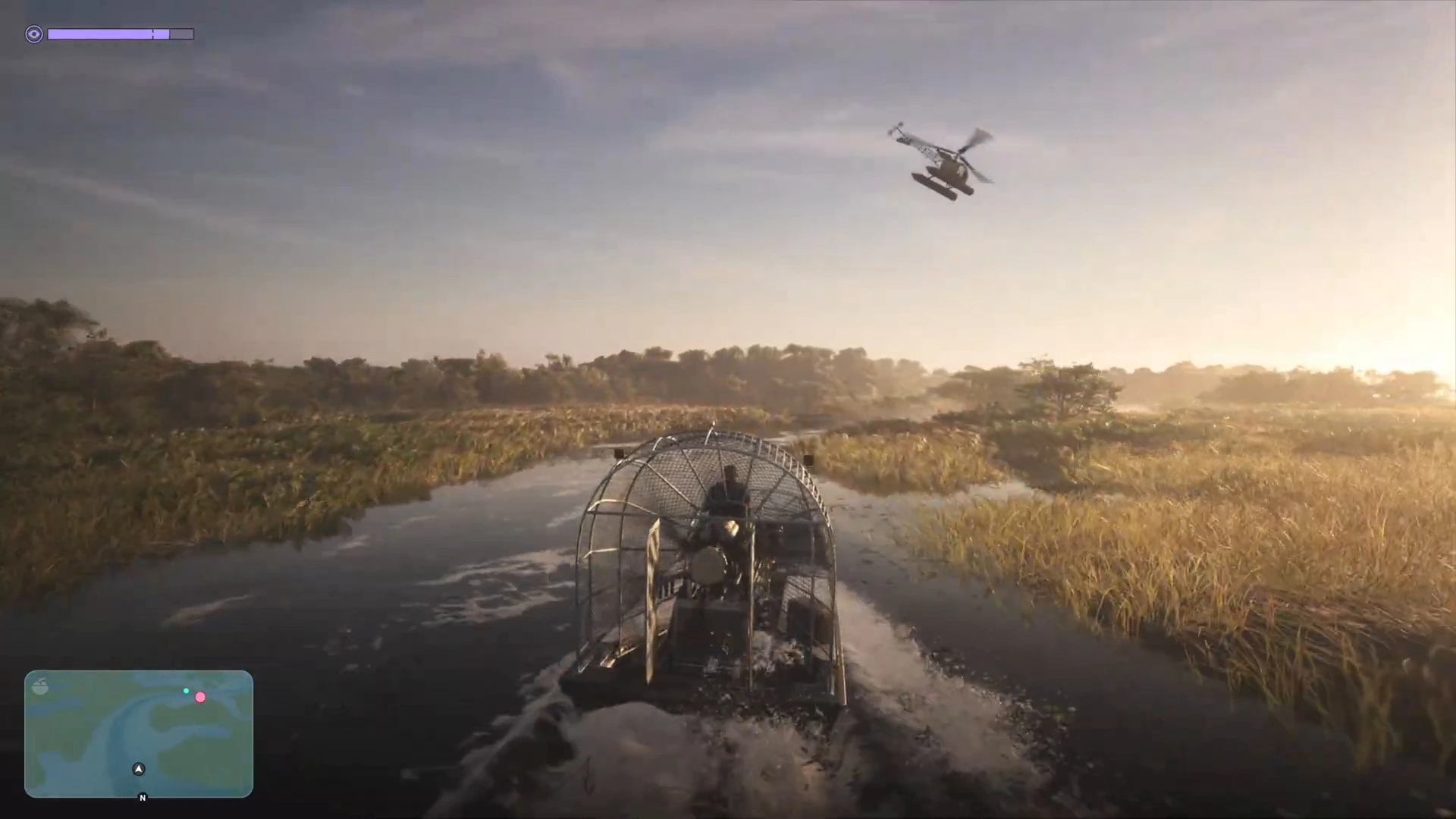
We haven’t confirmed a graphics menu with quality, performance or ray tracing toggles. Because there’s no performance mode, the best settings for most people sit outside the game:
- TV Game mode cuts input lag, which helps when driving and aiming at 30fps.
- VRR, if your TV supports it, evens out frame pacing. On console it usually starts at 48Hz, so it helps less at 30fps than in faster games, but it does no harm.
- Output resolution: set your console to 4K if your TV is 4K. On Series S the game renders lower and upscales.
- PS5 Pro owners: the Pro has the only ray-traced shadows, and its PSSR upscaling gives a cleaner image. Nothing here needs switching on by hand.
HDR and brightness calibration
GTA 6 is built around sunsets, neon and night drives, so HDR matters more than most settings. The order that works best:
- Set the TV to Game mode and turn off dynamic contrast or other automatic picture processing.
- Turn HDR on at the console. On PS5 go to Settings, Screen and Video, Video Output, HDR and choose On When Supported. On Xbox go to Settings, General, TV and display options and turn HDR on.
- Run the system calibration. PS5 has Adjust HDR in the same menu. Xbox has the free Xbox HDR Game Calibration app. Both walk you through matching the console to your TV’s real peak brightness.
- Recalibrate after changing TV picture settings. If you change the picture preset, tone mapping or HGiG setting, repeat the calibration.
We haven’t confirmed whether GTA 6 has its own in-game brightness or HDR calibration screen, and we won’t give you slider values, since the right number depends on your screen. Reviews of the TVs we recommend, like our best TV guide, explain which panels handle GTA 6’s contrast best.
Display, subtitles and the narrator
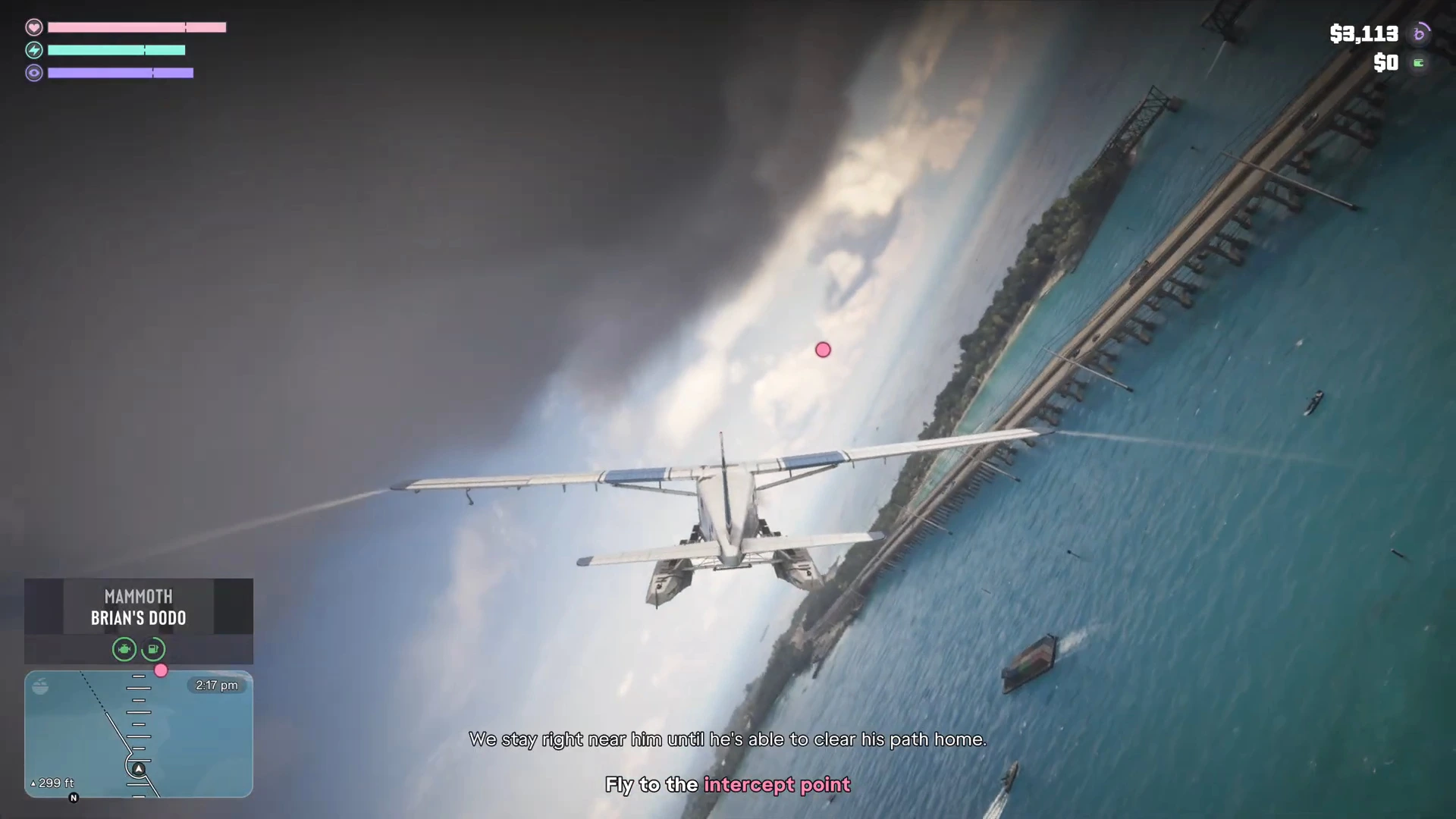
Subtitles. Every screenshot on this site was captured with subtitles on, so the game supports them. That’s useful in driving missions, where radio and engine noise can drown out dialogue, as the radio stations guide notes. The exact menu path is not confirmed here, so check the in-game settings.
Turning off the narrator. If a voice is reading out menu items, that’s the console’s accessibility feature, not a GTA 6 option:
- PS5: Settings, Accessibility, Screen Reader, then switch it off.
- Xbox: Settings, Accessibility, Narrator, then switch it off.
If your controller’s PS or Xbox button seems to do something odd as well, you’ve probably hit one of these shortcuts by accident.
Vignette and camera zoom. We haven’t confirmed in-game toggles for vignette, camera shake or camera zoom. Aiming does zoom the camera, and Focus slows time while you aim, but those aren’t adjustable options as far as we’ve verified. The first person page covers what is known about camera views.
Controller settings
We haven’t confirmed names for sensitivity, aim assist, vibration or trigger effect options. A held trigger is used for several actions, including lifting weights in the gym guide and casting a fishing line. If your triggers feel stiff or you play with a back-button pad, see the best controller for GTA 6. The buttons shown in the game are listed on our controls page.
Audio settings
We haven’t confirmed the names of the in-game volume sliders. Two things help regardless:
- A headset makes directional sound cues easier to follow, such as the beeping you track in Find Donnie’s Package. See best headset for GTA 6.
- Streaming or recording? The radio plays licensed music, so lower or turn off the radio before you record. The radio stations guide has more, and notes that Rockstar hasn’t published the radio volume control.