GTA 6 Controls: PS5 and Xbox Buttons for On Foot, Driving, Combat and Phone
GTA 6 controls for PS5 and Xbox: the buttons confirmed in the game for crouch, weapon wheel, fighting, phone, map and Focus, and what is still unconfirmed.
Skip to the guideThis page lists the GTA 6 controls we can confirm, for PS5 and Xbox, and says plainly where we can’t. The game has a lot of context prompts, so many buttons only show up on screen when you need them. Everything below that is marked confirmed was read from an on-screen prompt in the game. Anything marked not confirmed is something players ask about that we haven’t seen a prompt for. We won’t guess a button for those.
Quick answers: hold L1 for the weapon wheel · press up on the d-pad for the phone · press Square to fight, hold Cross to block, press Cross to dodge · press L3 + R3 for Focus · hold right on the d-pad and press R1 to switch between Jason and Lucia · crouch, headlights, turn signals, whistle and radio buttons are not confirmed.
Button names are PS5 first, then Xbox, for example R2 / RT. The standard mapping between pads is L1 / LB, R1 / RB, L2 / LT, R2 / RT, L3 / LS click, R3 / RS click, Cross / A, Circle / B, Square / X and Triangle / Y. Where we only saw the PS5 prompt, the Xbox button is that standard equivalent and we say so.
On foot
How to crouch
When you crouch, Jason moves slowly and quietly, which helps near guards. In Gone Fishing a hint reads “Crouch and move quietly to stay hidden”, and the prompt shows a button icon after the word Crouch.
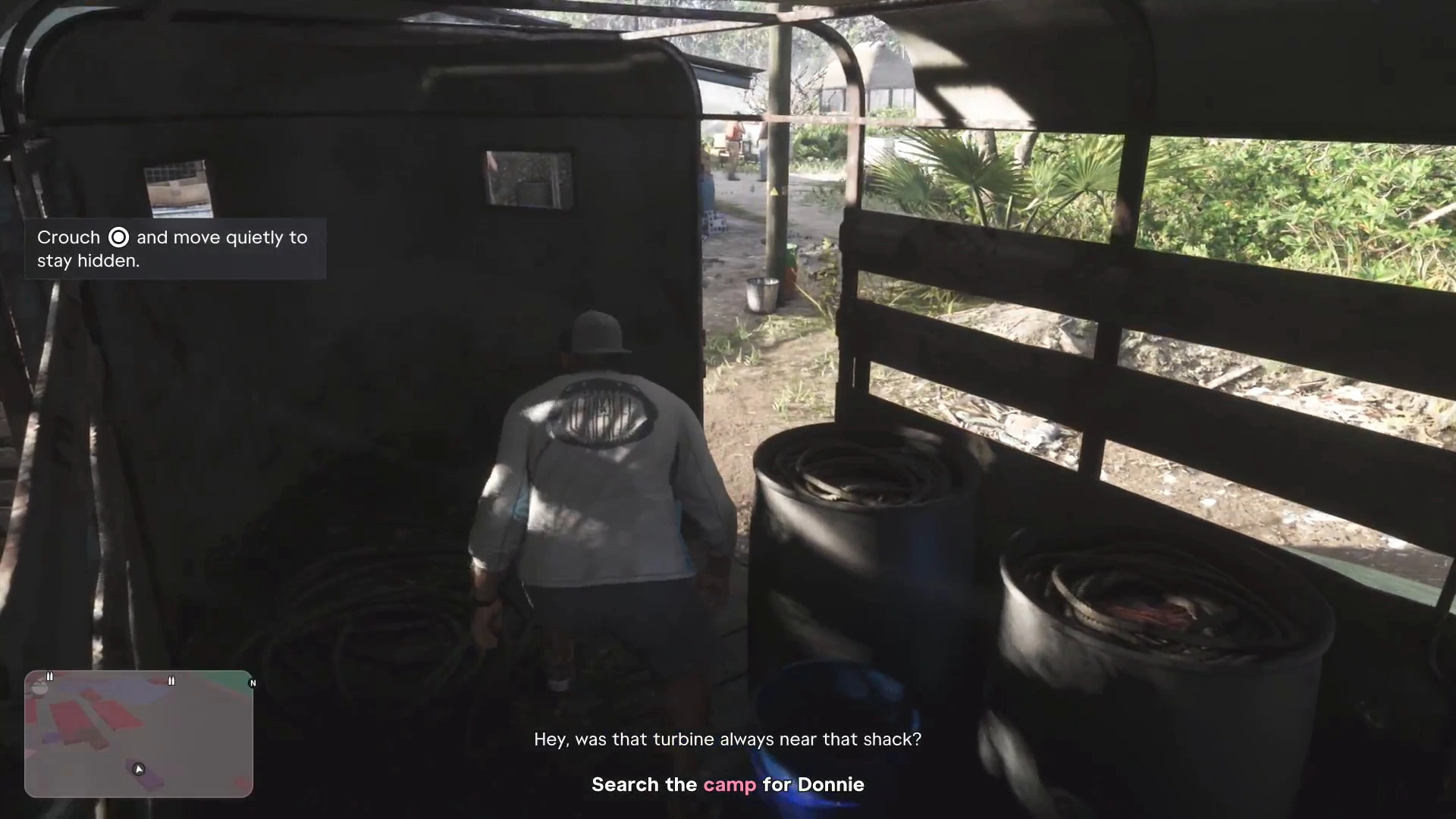
The icon is a ring with a dot, which looks like a stick-click icon, but at this size we can’t tell which stick. Rather than guess, treat the crouch button as not confirmed and check the controls list in the pause menu.
Jump, sprint and put the gun away
- Jump and sprint: not confirmed. We haven’t seen a prompt that names either button.
- Quick-equip your gun: a hint in Gone Fishing introduces it, but we haven’t read the button from the footage.
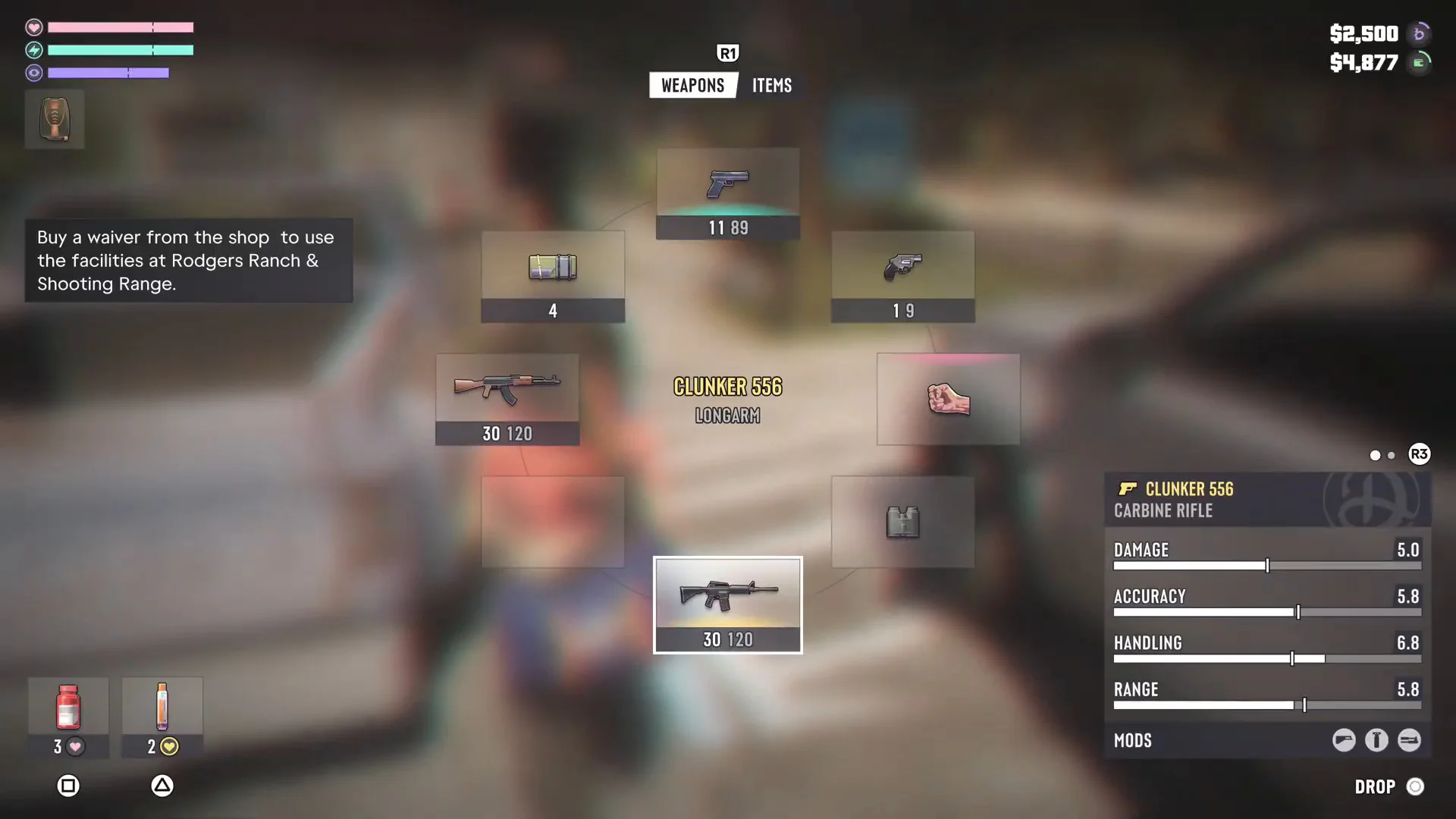
- Putting the gun away: open the weapon wheel and choose the fist slot. The wheel has an Unarmed slot with a fist icon, so choosing it puts the weapon down. A dedicated holster button is not confirmed.
Weapon wheel and items
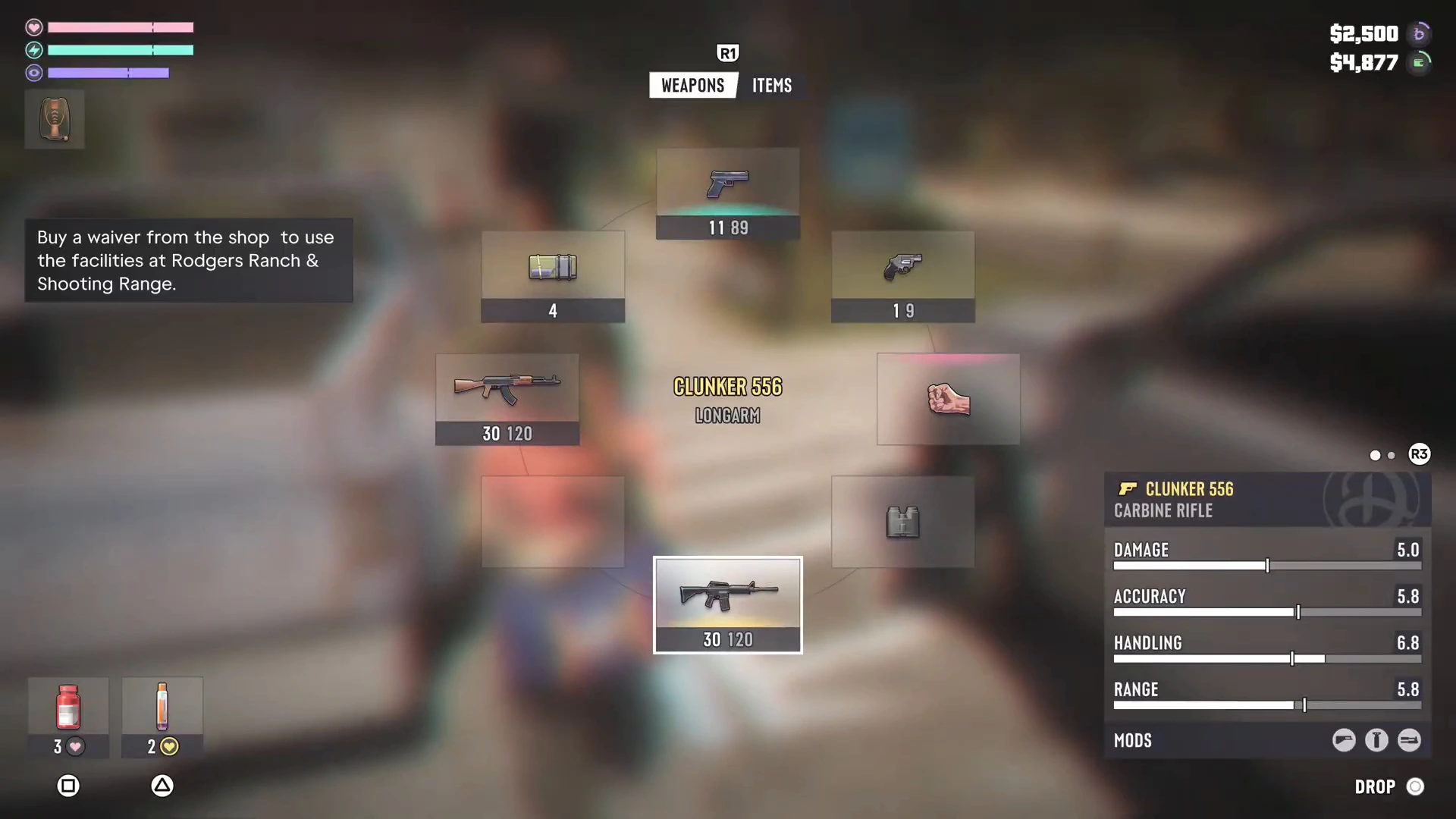
Hold L1 / LB to open the loadout. On PS5 we saw this directly. The Xbox button is the standard equivalent. At the top of the wheel, R1 / RB switches between the Weapons and Items tabs. Health items and adrenaline sit in the bottom corner, each with its own button icon (Square and Triangle on PS5), and Circle drops the selected weapon. Our combat tips and weapons list cover what you can carry.
Focus
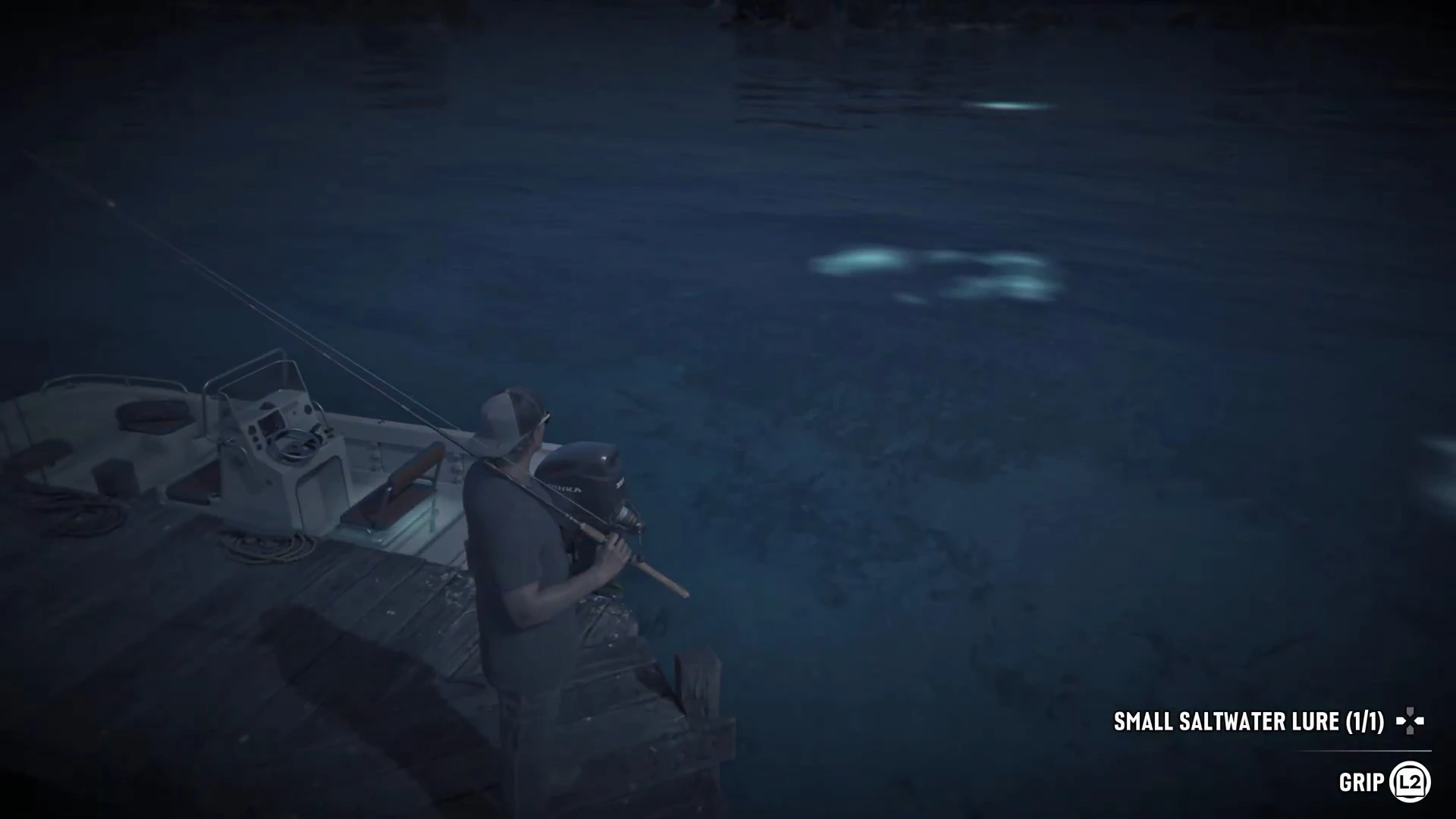
Press L3 + R3 (both sticks) to use Focus. Two separate hints show it: “Focus (L3 + R3) to locate the source of noises” in the jet ski dog encounter, and fish shoals lighting up in the fishing guide. There’s a full explanation on our Focus ability page.
Switching characters and other held prompts
To swap between Jason and Lucia, hold right on the d-pad and press R1 / RB. Holding a d-pad direction also opens other tools. The WAiNK car scanner is a held d-pad prompt, and on the map, holding the d-pad shows nearby places. See how to switch characters.
Driving
Driving prompts are the biggest gap in what we’ve confirmed. We have footage of driving, but the controls list was never on screen, so these are not confirmed:
- Aim while driving and shoot while driving
- Headlights
- Turn signals
- Horn and whistle
- Radio: changing station and lowering the volume
- Handbrake and camera look-back
What we know about the radio is on the radio stations page, and it says the same thing: Rockstar hasn’t published the radio controls. One fact is confirmed. A hint in Gone Fishing says you can hold a button to change camera views, so the camera view is switchable at least during that mission. The first person page covers what we know.
Combat and melee
The fight prompt appears the first time a brawl starts, for example after leaving the Ammu-Nation in Gear Up. It reads:
- Press Square / X to fight
- Hold Cross / A to block
- Press Cross / A to dodge
The Xbox letters are the standard equivalents, because the prompt we saw was the PS5 one. The full breakdown, including what happens when you can’t confirm a move, is on the melee combat page.
The phone
Press up on the d-pad to open the phone. The home screen shows the time, the weather, a Reminders widget and a grid of apps. The prompts at the bottom right read Reminders (X), Select (A) and Exit (B) on Xbox, and the Fitness app screenshot shows Select (Cross) and Back (Circle) on PS5. That’s how you open an app and back out of it.
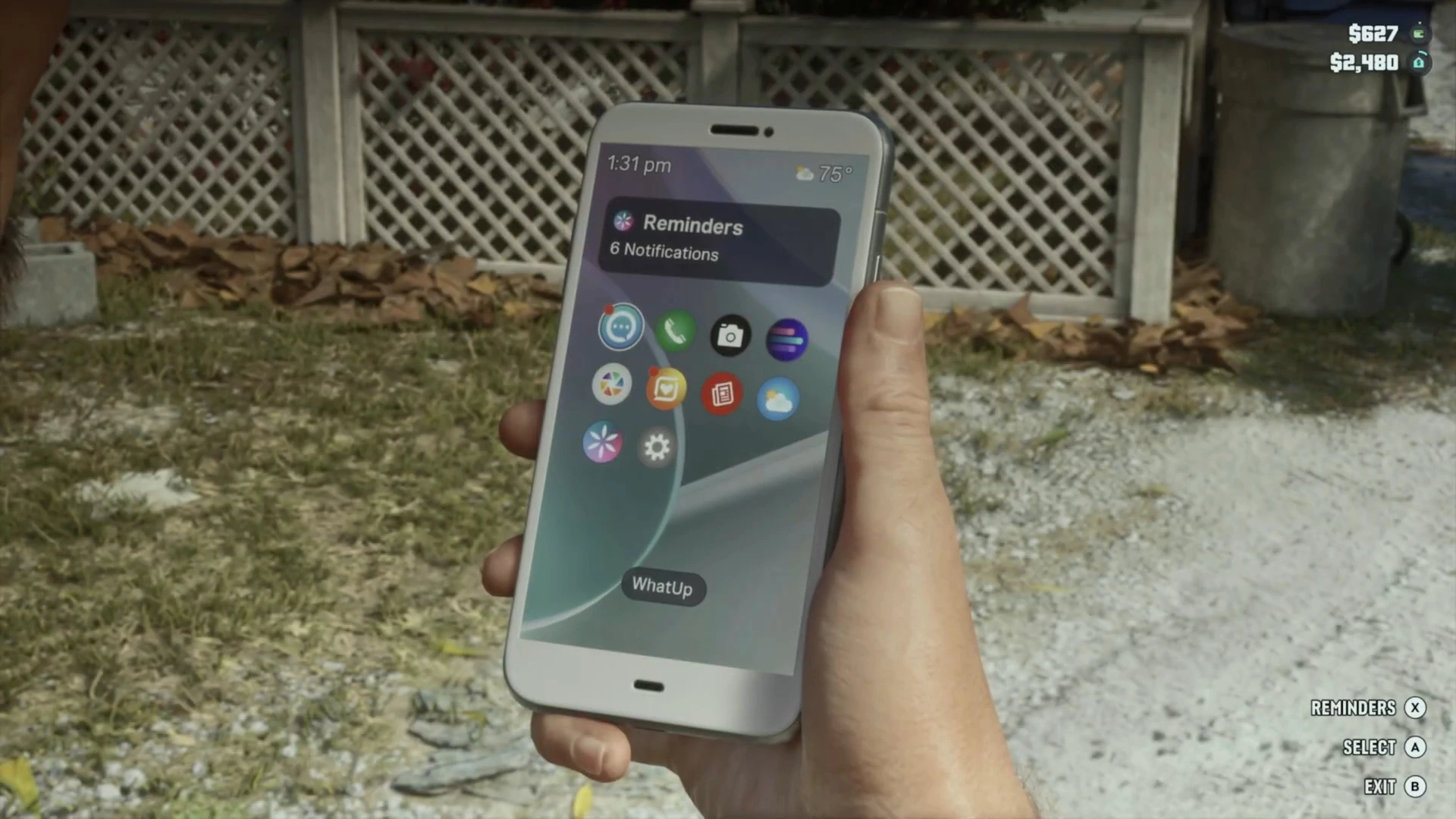
Answering a call isn’t something we’ve confirmed. Calls in missions often start by themselves or after a prompt, and the phone and apps guide lists the apps. Every contact is in the phone contacts guide.
Pause menu and map
The pause menu opens with the touchpad on PS5 or Menu on Xbox. The tabs across the top are Jason & Lucia, Map, Brief and Progress, and L1 / LB and R1 / RB move between them. On the map:
- L3 recenters
- R3 switches to the 2D view
- Square / X adds a marker
- Cross / A sets a destination
- Circle / B exits
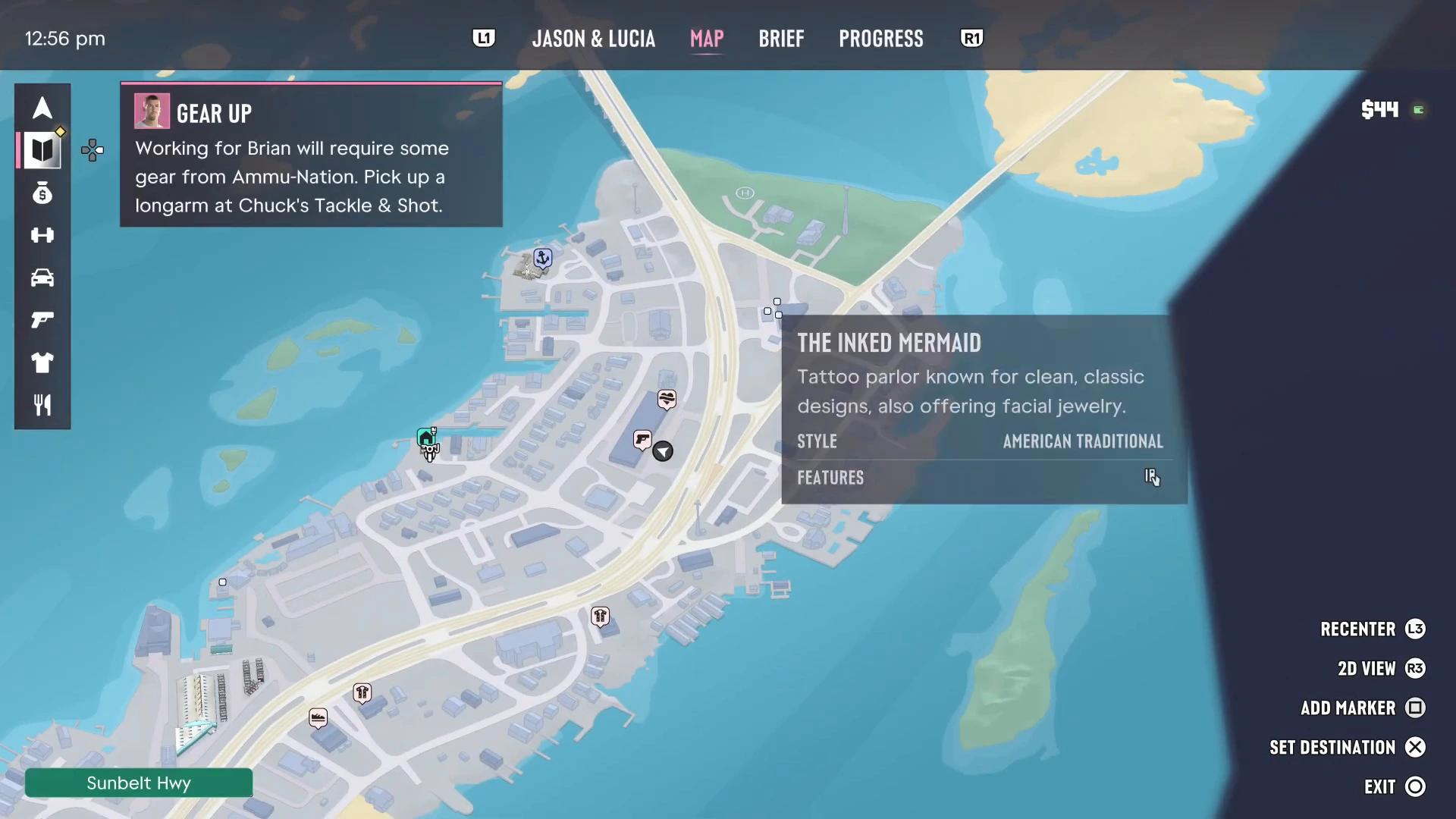
There’s more on this in the map, waypoints and GPS guide.
Quit to the main menu
We haven’t confirmed where the quit-to-main-menu option sits. Open the pause menu and look through its tabs. We’ll update this page when we’ve checked it.
Controller advice
If you want to rebind buttons or adjust sensitivity, our best settings page lists what is and isn’t confirmed. For hardware, see the best controller for GTA 6.
More GTA 6 guides
- GTA 6 beginner tips
- GTA 6 best settings
- GTA 6 first person
- GTA 6 Focus ability
- GTA 6 melee combat
- Every GTA 6 mission walkthrough
- GTA 6 weather and time of day