How to Auto-Drive in GTA 6 (Autopilot Steps and Settings)
How to use auto drive in GTA 6: set a waypoint, switch to Cinematic view, hold the button, plus the settings option, speed controls, boats and how to stop.
Skip to the guideAuto drive lets the game steer your vehicle to a waypoint while you sit back. To start it in GTA 6, put a waypoint on the map, get into a car, open the camera options by holding D-pad Down, pick Cinematic view, then hold Circle (PS5) or B (Xbox). Jason or Lucia drives the route and you can ease off the sticks.
It is one of the most searched “how do I” questions about the game right now, and the prompt is easy to miss because it hides behind the camera menu. This page covers the steps, the setting you may need to change, how to control speed, how to stop it, and what it will not do.
Quick version: waypoint → get in a vehicle → hold D-pad Down → Cinematic view → hold Circle / B → hold D-pad Down to stop.
Step by step
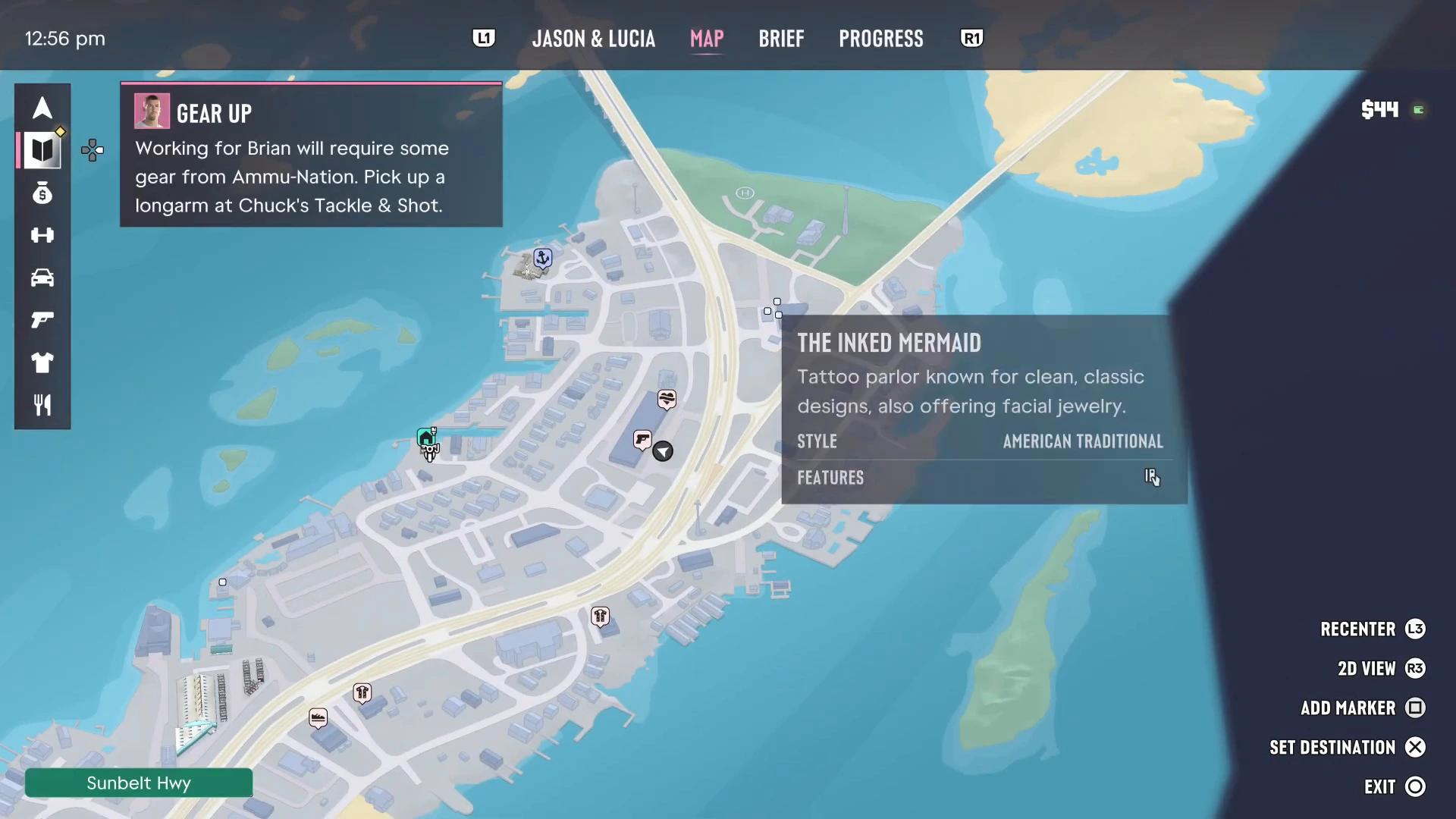
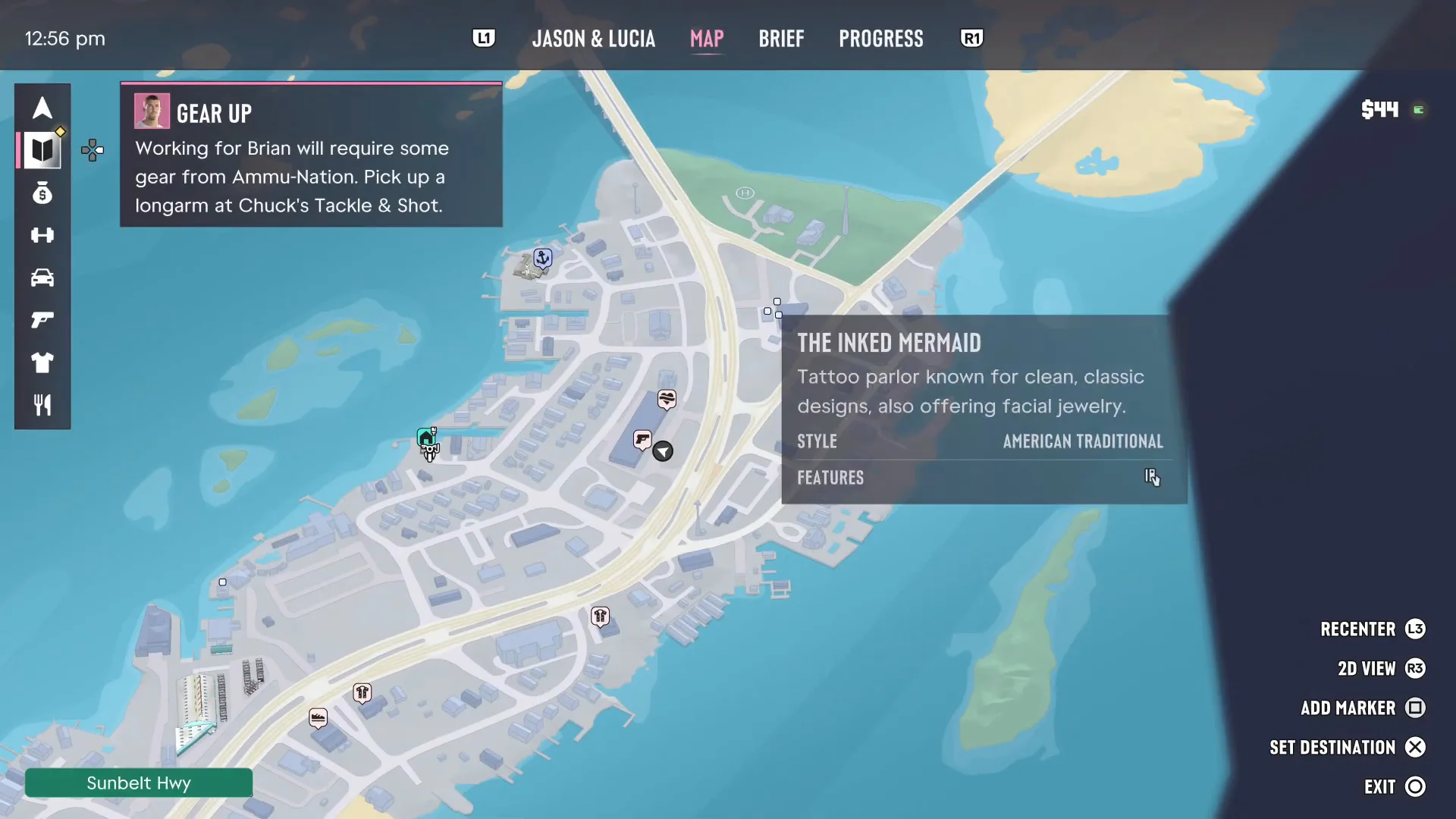
- Set a waypoint. Open the map and mark where you want to go. Without a destination there is nothing for the driver to follow. See map, waypoints and GPS for how to place and clear markers.
- Get into a vehicle. Triangle on PS5 or Y on Xbox. Cars are the main use case.
- Open camera options. Hold D-pad Down. A small camera menu appears in the corner of the screen.
- Choose Cinematic view. Press Options on PS5 or Menu on Xbox.
- Hand over the wheel. Beebom describes lightly pressing R2 or RT until the auto drive prompt appears, then holding Circle (PS5) or B (Xbox). Gamer Blurb skips the trigger press and just says to hold Circle or B. If nothing happens, try the light trigger press.
The camera then cuts between film-style angles while the car follows the road.
The Auto Drive setting
The sources disagree here. Beebom says you should open Settings, then Gameplay, then Auto Drive and set it to Unrestricted so it works in every situation. GameTyrant says the option is available by default but that a menu toggle unlocks its full behavior. The safe route is to check that setting yourself if the prompt will not appear. If you are tuning other options at the same time, the best settings guide covers the rest of the menu.
Speed and stopping
- Slow down: L2 on PS5, LT on Xbox.
- Speed up: R2 on PS5, RT on Xbox.
- Stop: hold D-pad Down to leave Cinematic view. Gamer Blurb and Beebom both give this as the exit and neither lists a different one.
Beebom also reports that the driver tends to pick calm, scenic routes rather than the quickest line, and that it stops at red lights.
Riding with a partner
When both characters are in the car, Beebom says you can hold D-pad Right and press R1 (PS5) or RB (Xbox) to switch to your partner, who then drives. As a passenger, hold D-pad Right and press Square (PS5) or X (Xbox) to ask them to speed up. Our character switching guide explains the wider switch system.
Boats
Playnews reports the same method works on water: Cinematic view, then hold the auto drive button. The waypoint has to be reachable through connected water. If you mark a spot inland, the boat goes as far as it can and then switches itself off. We could not confirm this ourselves, so treat it as a single-source claim. For boat and aircraft controls in general, see boats, planes and helicopters.
What auto drive will not do
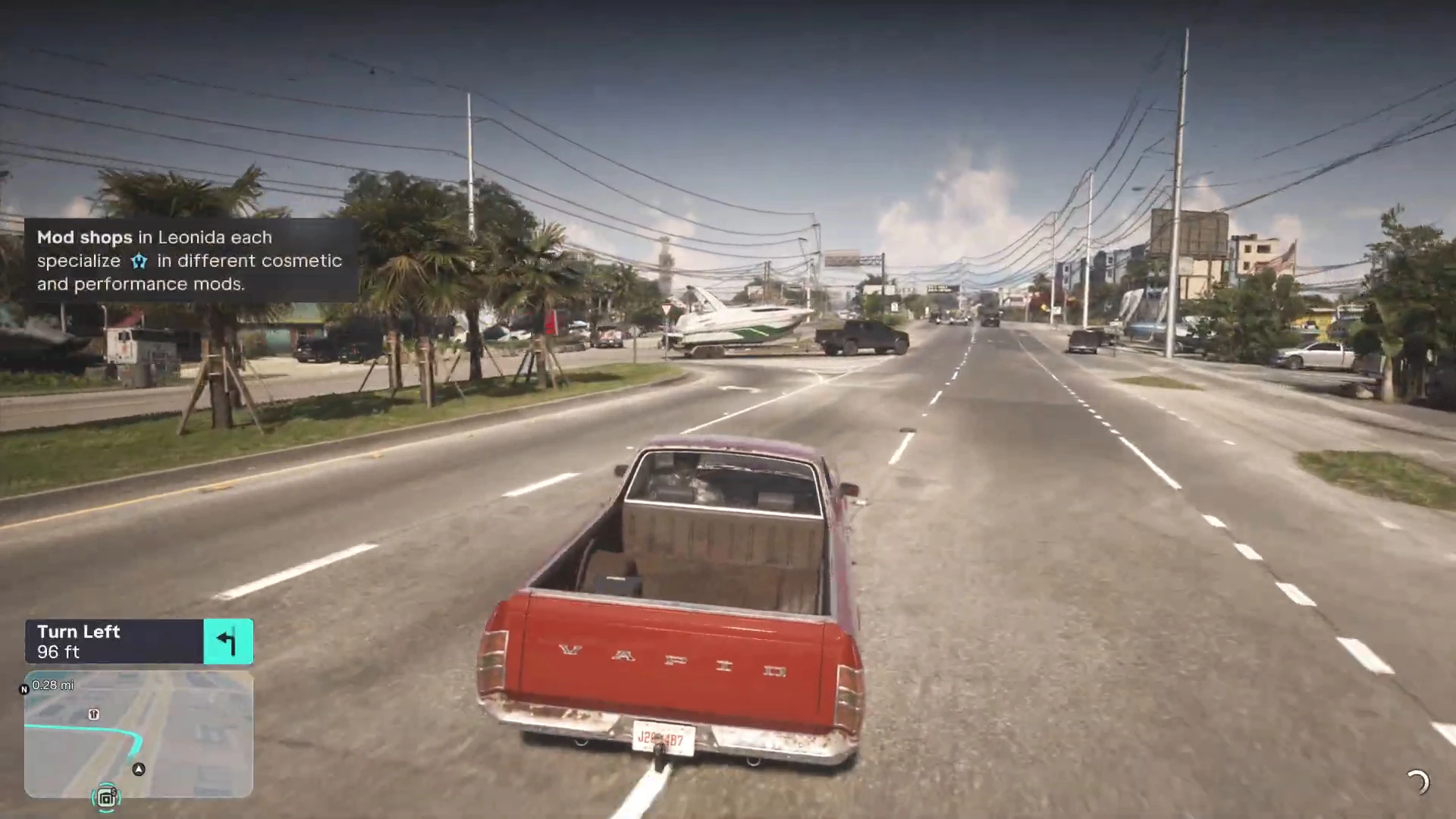
- It is not fast travel. The character really drives, so traffic jams and crashes can interrupt the trip, as Gamer Blurb notes. For skipping a journey, Beebom points to the RydeMe phone app, which charges a $100 skip fee once you are inside the ride. Our fast travel and taxi page covers taxis and skipping.
- It follows traffic rules. Do not expect a getaway driver. Playnews and Beebom both say it obeys lights and avoids reckless moves.
- It works best with road waypoints. A marker in a spot cars cannot reach will leave you short of the target.
- The sources do not cover wanted levels, speed caps or aircraft. We have not tested what happens when police are chasing you, so do not rely on it during a pursuit. For that, use the how to lose the cops guide.
Common problems
No prompt appears. Check that a waypoint is set, you are in Cinematic view, and the Auto Drive setting is not restricted.
The car stops often. That is the traffic-law behavior. Slow traffic and red lights will pause the trip.
You cannot get out of Cinematic view. Hold D-pad Down again. If you also changed the camera for a different reason, the controls guide lists the other view options.
You wanted a quick trip. Auto drive is the relaxed option. Pay for a RydeMe skip or take a taxi instead.
Sources
Steps and button names come from Beebom’s “How to Auto-Drive in GTA 6” (beebom.com/how-to-auto-drive-in-gta-6/) and Gamer Blurb’s “GTA 6 How to Auto Drive” (gamerblurb.com/articles/gta-6-how-to-auto-drive). The boat behavior comes from Playnews (playnews.gg) and the setting disagreement from Beebom and GameTyrant (gametyrant.com). Verify the final details in your own game before relying on them.