GTA 6 Crashing, Audio Bug and Licenses Being Verified: How to Fix
Fixes for GTA 6 crashing, the audio bug, the PS5 licenses being verified message and locked cheats, using official PlayStation, Xbox and Rockstar steps.
Skip to the guideIf GTA 6 keeps crashing or shows an error, work through the official console steps in order: install every update, restart or power cycle the console, restore licenses (PS5), then reinstall the game. Rockstar hasn’t published a GTA 6 specific crash fix or any patch notes, so every step below comes from PlayStation Support, Xbox Support or Rockstar Support’s general guidance, and we mark anything we couldn’t confirm. We haven’t reproduced these problems ourselves.
Quick version: save if you can → update the system software and the game → restart the console → on PS5 use Restore Licenses, then Safe Mode › Rebuild Database → on Xbox power cycle → reinstall the game → contact Rockstar Support with your console, error code and the moment it crashes.
Before you start: save and update
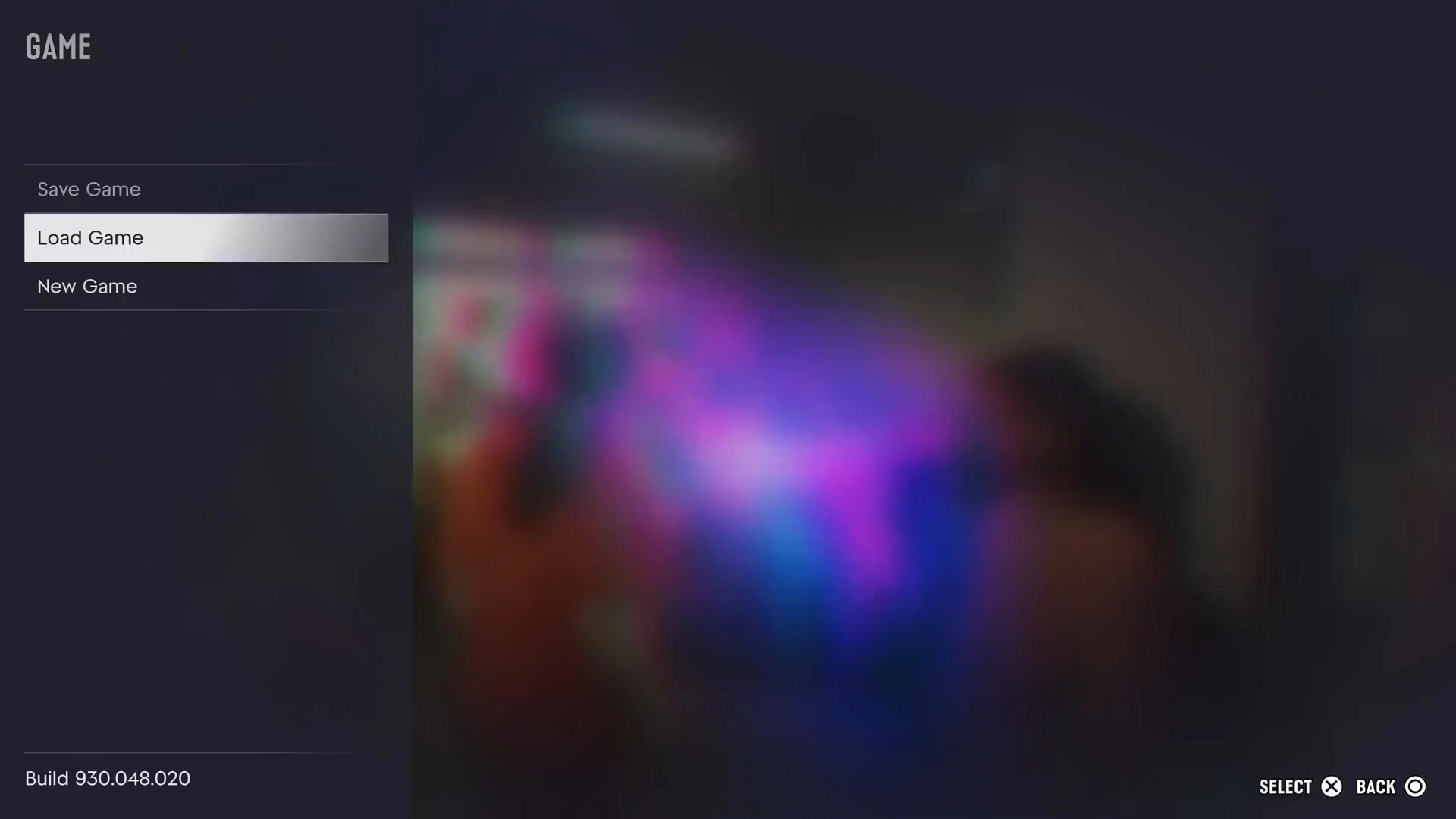
If the game still runs, make a manual save. Pause, open the Game tab and choose Save Game. Our save guide shows the menu.
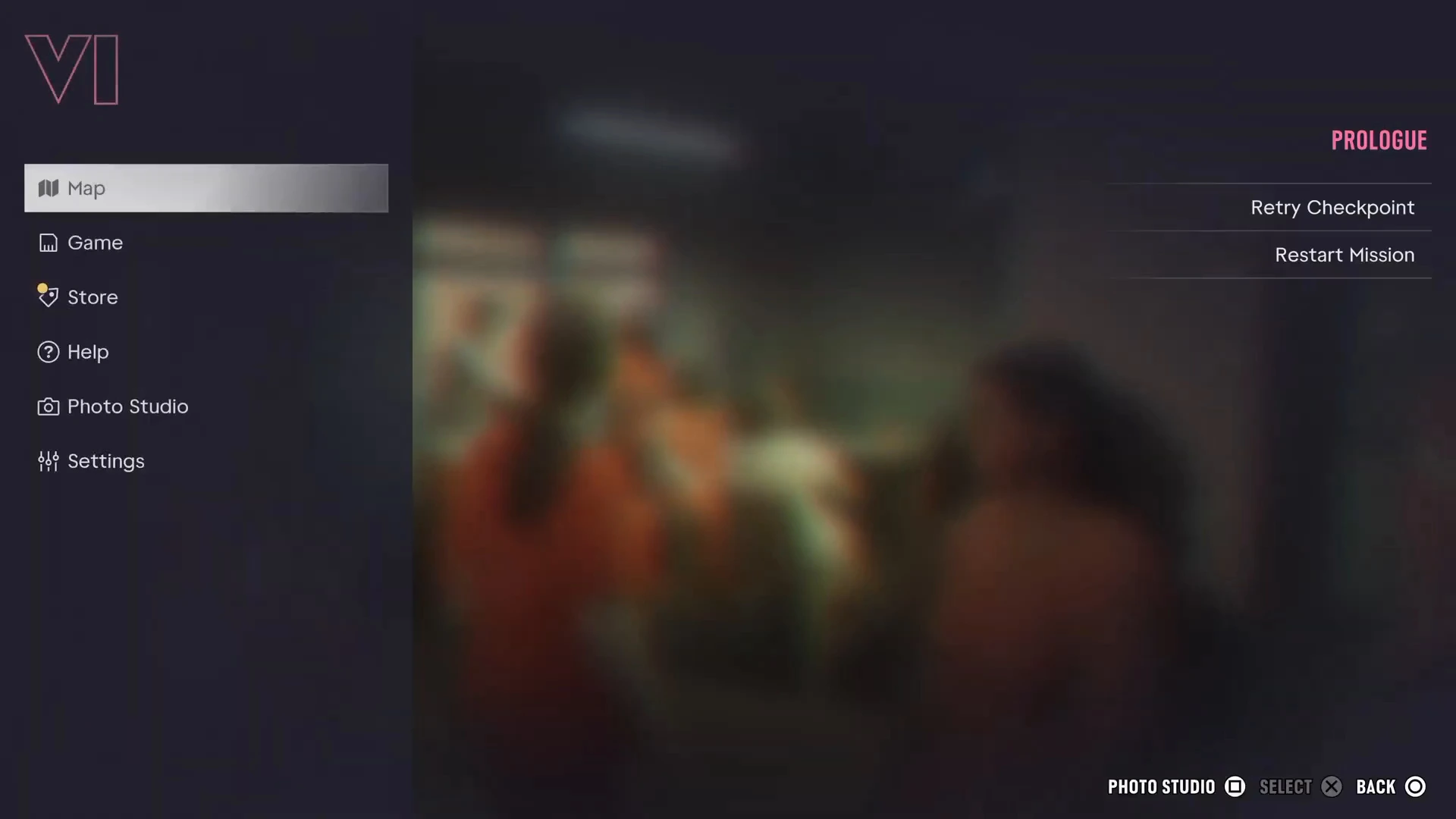
The patch history matters here. GTA 6 requires the day-one update 01.002.001 before it will start, and PS5 owners also needed a PS5 system software update on November 17 according to PlayStation Support. See the patch notes page for versions and how to read your build number, shown at the bottom left of the pause menu.
Fix GTA 6 crashing on PS5
PlayStation Support’s pages for games that crash or won’t launch recommend these, roughly in this order:
- Update the system software and the game, and restart the console.
- Restore licenses. On PS5 go to Settings › Users and Accounts › Other › Restore Licenses (the path can differ slightly by version). PlayStation says this doesn’t affect your data and can help with crashes, padlock icons and missing games.
- Rebuild the database. Start the console in Safe Mode and choose Clear Cache and Rebuild Database, then Rebuild Database. PlayStation notes that some Safe Mode options can delete data, so back up first.
- Delete and re-download the game, using a wired connection if you can. GTA 6 is about 200GB, so check your file size guide and your free space first.
- Reinstall system software only as a last resort. PlayStation warns it erases internal storage.
PlayStation pages are older than GTA 6, so menu names may have changed. The steps are general, not GTA 6 specific.
Fix GTA 6 crashing on Xbox
Xbox Support says a restart or full power cycle can fix many common problems and doesn’t erase games or data. Its game troubleshooting page covers games that freeze, quit unexpectedly or won’t start. If those don’t work, uninstall and reinstall the game. Xbox says saved data syncs online when you’re signed in, so sign in before you uninstall. Make sure the game is installed on internal storage or a Storage Expansion Card, and free space if the console is full.
We couldn’t find an Xbox page that names GTA 6, so treat these as general steps.
Fix “your licenses are being verified” on PS5
We couldn’t find this exact message on PlayStation Support or Rockstar Support pages, and Sony hasn’t published an explanation for it. Reporting around launch described PS5 digital copies doing a license check, and Notebookcheck and Exputer reported that Rockstar Support said PS5 download codes are region-locked. That is the closest explanation we have, but it isn’t confirmed as the cause of this message. What to try:
- Wait a few minutes while online. A license check needs a connection. Our internet guide says the story plays offline, but you need to be online for the download and checks.
- Check that your PSN account region matches the code’s region. A code bought for another region may not redeem or verify.
- Update the system software and the game, then restart.
- Restore licenses with the steps above.
- Contact PlayStation Support if it keeps happening, with the exact message and the time.
Fix the GTA 6 audio bug
No official GTA 6 audio problem or fix has been announced, and we haven’t confirmed one ourselves. These are generic steps, and none is a promised cure:
- Restart the game, then restart the console.
- Check the console’s sound output settings and the TV or headset connection. The headset guide may help if the problem is only on one device.
- Confirm you’re on the latest game update.
- Report it to Rockstar Support with your console and when it happens.
Why are the cheats locked?
That one isn’t a bug. The Cheats option only appears in the pause menu’s Progress tab after you finish the main story, and each cheat then needs its own challenge. GamesRadar+ and PC Gamer tested this, and entering codes earlier does nothing. Details are on our cheats page, and see the trophies guide for what cheats switch off.
Contact Rockstar Support
Rockstar’s GTA VI error troubleshooting page points you to console error-code lookups for PS5 and Xbox Series X|S, and its service status page shows whether servers are up. When you contact Rockstar Support, include:
- Your console and the game version
- The exact error code or message
- What you were doing when it crashed
- The steps you’ve already tried
More GTA 6 guides
- GTA 6 patch notes
- How to save
- Does GTA 6 need internet or PS Plus?
- Preload and download
- GTA 6 cheats
- GTA 6 FAQ